Your Wi-Fi password has probably had a busier life than you intended. It has been texted to guests, typed into visitors’ phones, given to the neighbours during their outage and quite possibly it is still the one printed on the router the day it arrived. Learning how to change your Wi-Fi password — and the network name while you are in there — is a fifteen-minute job on every major UK router, and it instantly retires every copy of the old one. This guide walks through logging in on BT, Virgin Media, Sky, TalkTalk, Plusnet and EE hubs, choosing a name and password worth having, and reconnecting the house without chaos. Once it is done, the SpeedTestUK homepage test is the quickest way to confirm everything is back up to speed.
First, know which password you are changing
Your router guards two different passwords, and confusing them is where most guides fall over. The Wi-Fi password (also called the wireless key or passphrase) is what phones, laptops and TVs use to join your network — that is the one this article changes. The admin password unlocks the router’s settings pages themselves. Both start life printed on the router: usually on a sticker underneath or on the back, or on a pull-out settings card slotted into the hub. Changing the Wi-Fi password does not change the admin password — and while you are logged in, changing the admin one too is good practice if it is still the factory default, because anyone on your network who knows the default could otherwise change your settings. Everything below uses the sticker details, so have the router within reach before you start.
Step 1: log in to your router
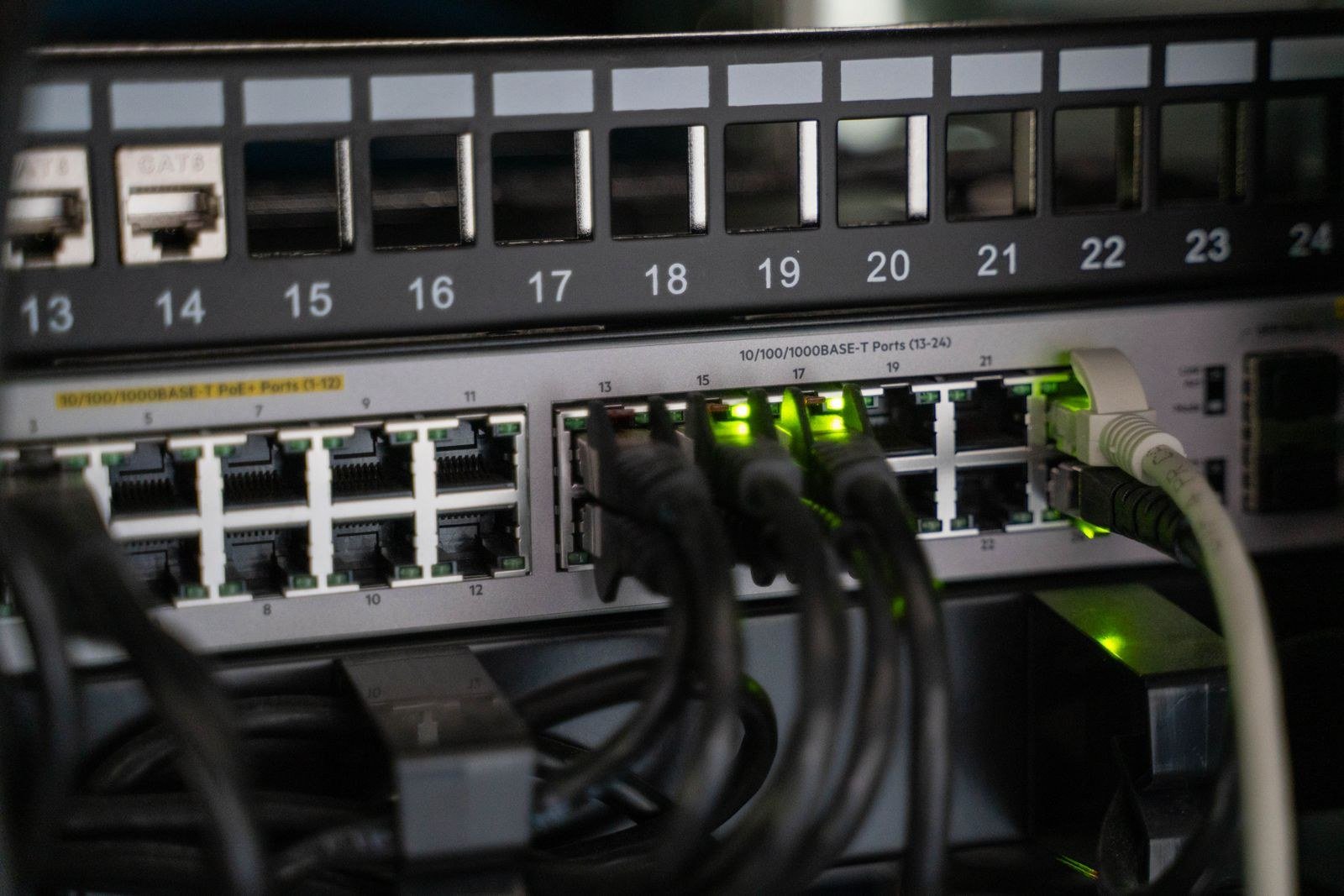
Connect a phone or laptop to the router first (Wi-Fi is fine), open a browser, and type the address for your hub into the address bar — not a search box. The major UK routers live here:
| Router | Settings address | Admin sign-in |
|---|---|---|
| BT Smart Hub / Smart Hub 2 | 192.168.1.254 (or bthomehub.home) | Admin password on the settings card |
| Virgin Media Hub 3 / 4 / 5 | 192.168.0.1 | Settings password on the base of the Hub |
| Sky Broadband Hub | 192.168.0.1 | Username: admin — password: your Wi-Fi password or “sky”, per model |
| TalkTalk Wi-Fi Hub | 192.168.1.1 | Username: admin — password on the sticker on the back |
| Plusnet Hub Two | 192.168.1.254 | Admin password on the removable settings card |
| EE Smart Hub | 192.168.1.254 | Admin password on the slide-out card |
Exact screens vary between models and firmware versions, and if your address does not load, the sticker and your provider’s app are the fallback: the My BT app, Virgin Media Connect app, My Sky app and EE app all offer a route into Wi-Fi settings without a browser. Treat the table as the map and your own hub’s menus as the terrain — the setting itself is always within the wireless or Wi-Fi section once you are in.
Step 2: change the name and the password
Once logged in, look for Wireless, Wi-Fi or Network settings. You will find two editable fields: the network name (labelled SSID or Network Name) and the password (labelled Wireless Key, Security Password, Passphrase or Wi-Fi Password). On a BT Hub, per BT’s own help page, the route is Advanced Settings, then Wireless, then overtype the existing key with your new one — BT passwords must be between 8 and 63 characters — and select Apply, repeating for the 5GHz band if you have split your network names. The pattern on other hubs is the same idea with different labels: find the wireless page, edit both fields, save or apply. Two practical warnings. First, the moment you save, every device on the old details drops off — including the one you are using, if it is on Wi-Fi — so do this when you can afford ten disconnected minutes, and ideally from a laptop wired to the router. Second, if your router shows separate 2.4GHz and 5GHz networks, change both to the same new name and password (or deliberately keep them split, if you set them up that way for smart-home gadgets).
Choosing a name and password worth having
The network name is visible to every neighbour and passer-by, so make it fun if you like — but never informative. No house number, no surname, no provider model that advertises exactly which hub you own. For the password, follow the UK National Cyber Security Centre’s advice and build it from three random words: something like “teapot-harbour-finch” is long, memorable to you and miserable to guess, and it beats a short tangle of symbols you will inevitably write on a sticky note. Avoid the obvious — address fragments, pets, football teams, “password” with the vowels swapped. If you want to check how your candidate scores before committing the whole house to it, run it through our password strength checker, which estimates how long it would take to crack, in your browser. And never reuse your email or banking password here: this is a password you will give to guests, so it should unlock the Wi-Fi and nothing else.
Step 3: reconnect the house, in the right order
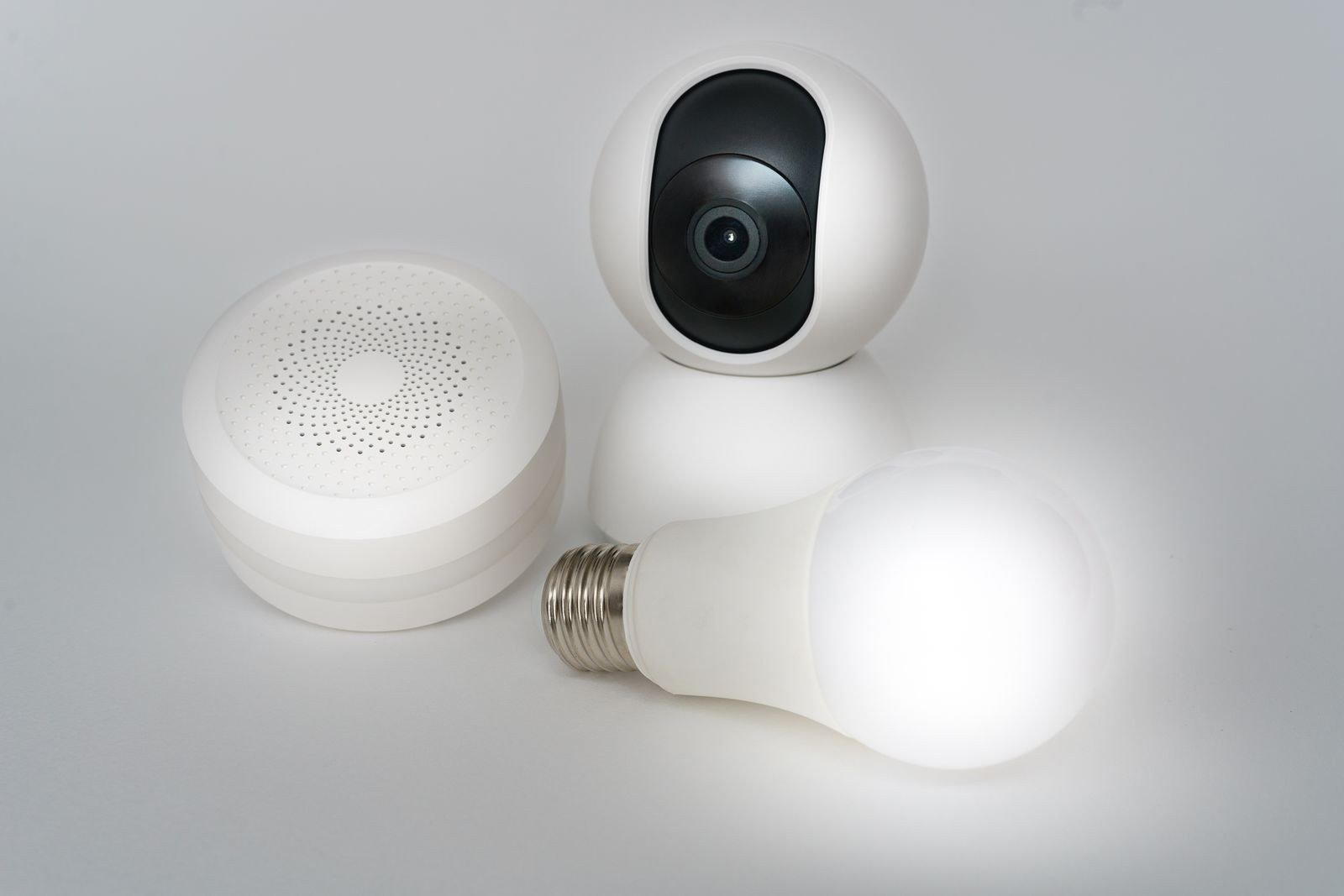
Start with the devices you are holding: on your phone and laptop, forget the old network if they complain, then join the new name with the new password. Work through the rest in order of importance — work computers, phones, the TV — and leave the smart-home long tail (plugs, bulbs, cameras, the doorbell) for a patient half-hour afterwards; most reconnect the same way they first joined. A few practical notes from households that have done this dance: devices joined by a WPS button press need the same treatment again at their own settings or app; printers are reliably the worst-tempered item in the house and often need their wireless setup wizard re-run from the device’s own screen; and anything connected by Ethernet cable does not care at all, which is another quiet argument for wiring the fixed, greedy hardware. If your router offers a guest network and you use one, remember it has its own separate name and password fields — change those too, or the old password lives on in the guest lane you created for visitors. This is the moment our Wi-Fi QR code generator earns its keep: enter the new name and password and it produces a code guests can scan instead of squinting at a string of characters read aloud. Print it, stick it inside a kitchen cupboard door, and the “what’s the Wi-Fi?” question is answered permanently. Run a quick Wi-Fi speed test on a couple of reconnected devices to confirm the network is behaving, and note the new details somewhere safe — a password manager beats the back of an envelope.
If you are locked out completely
Forgotten the admin password you set years ago? Every hub has a factory reset — typically a recessed pinhole button you hold for 10–30 seconds with a paperclip while the router is on. Resetting restores the original network name and passwords printed on the sticker, along with wiping any other settings you had changed (port forwarding, split bands, schedules), so it is the last resort rather than the first. Wait for the hub to come fully back online, log in with the sticker details, and immediately set your new name, Wi-Fi password and admin password in one sitting. If the sticker itself is lost or unreadable, your provider’s support can identify the hub from your account — but try a photograph of the base with your phone torch first; that solves it surprisingly often.
Frequently asked questions
How often should I change my Wi-Fi password?
There is no calendar rule. Change it when the circle of people who know it has grown beyond your comfort — after a falling-out with a housemate, when an ex moves out, after you suspect it has been shared around the street, or when you move home and inherit a router others may know. A strong password you change on those occasions beats a weak one rotated monthly.
Will changing the password disconnect everything?
Yes — that is rather the point. Every device using the old password loses its connection the moment you save, and must rejoin with the new one. Plan for it: wired laptop for the change itself, then ten minutes of reconnecting the essentials, then the smart gadgets as they complain over the following days.
Can I change the Wi-Fi password from my phone?
Usually, yes, two ways: through your provider’s app (My BT, Virgin Media Connect, My Sky and EE all expose Wi-Fi settings), or by opening the router’s address in your phone’s browser while connected to the Wi-Fi. The app route is gentler for most people; the browser route shows every setting. Either way, your phone will drop off the network when you save, and rejoining with the new password is the final step.
What is the difference between the Wi-Fi password and the admin password?
The Wi-Fi password lets a device join your network. The admin password lets a person change the router itself — its settings, its passwords, its connected devices. They start out different, are printed in different places on the sticker or card, and should both be changed from their defaults. Never set them to the same thing.
I changed the name and now my smart plugs have vanished. Why?
Most smart plugs, bulbs and cameras only speak 2.4GHz Wi-Fi and were joined to the old network name, so a rename orphans them until you re-add them in their apps. If your router had split bands or a combined name before, keep the new setup as similar as possible — same naming pattern, ideally the same name with a new password only — and smart kit usually needs nothing more than the new password entering once.
The bottom line
Log in, rename, re-password, reconnect — fifteen minutes, once, and your network belongs to the people you actually chose. Set a three-random-words password, park it in our Wi-Fi QR code generator for guests, and the job never has to be done in a panic. If this audit of your network has you wondering who is on it right now, that is the subject of our companion guide to finding unknown devices — and changing this password is step one of the eviction.