Every visitor asks the same question — “can I get on your Wi-Fi?” — and every time you read out the password on the router sticker, your whole home network goes with it: the laptop with your work on it, the NAS with the family photos, the lot. Learning how to set up guest Wi-Fi ends that. A guest network is a second, walled-off network from the same router: guests and smart gadgets get internet access and nothing else, while your own devices stay invisible to them. This guide covers the set-up on the routers and mesh systems UK homes actually have, the honest list of provider hubs that cannot do it, and how to move your smart devices across without a weekend of factory resets. The device you are reading this on is already connected, so you can follow along now via the SpeedTestUK homepage.
What a guest network actually is (and is not)
A guest network is a separate wireless network broadcast by the same router, with its own name and password, and one crucial rule behind the scenes: client isolation. Devices on the guest network can reach the internet, but they cannot see, scan or connect to anything on your main network — not your laptop, not your printer, not your file storage, and usually not even each other. Some routers also let you cap the guest network’s bandwidth or set it to switch off after a few hours.
Two things it is not. It is not a second internet connection: guest devices still leave through the same line and the same public address (run our What Is My IP tool from a guest device and it will show the same address as your phone — the separation is inside your home, not out on the internet). And a second network name on its own proves nothing: what matters is that isolation is switched on, which on proper guest modes it is by default. That isolation is the entire point — it is what makes the guest network the right home both for visitors’ phones and for the cheap smart gadgets you would rather keep at arm’s length.
Two jobs for one network: visitors and smart devices
Visitors are the obvious job. A guest password can be shared freely, changed after a big gathering, or retired when the lodger moves out — all without disconnecting a single device of your own or re-entering passwords on twenty gadgets.
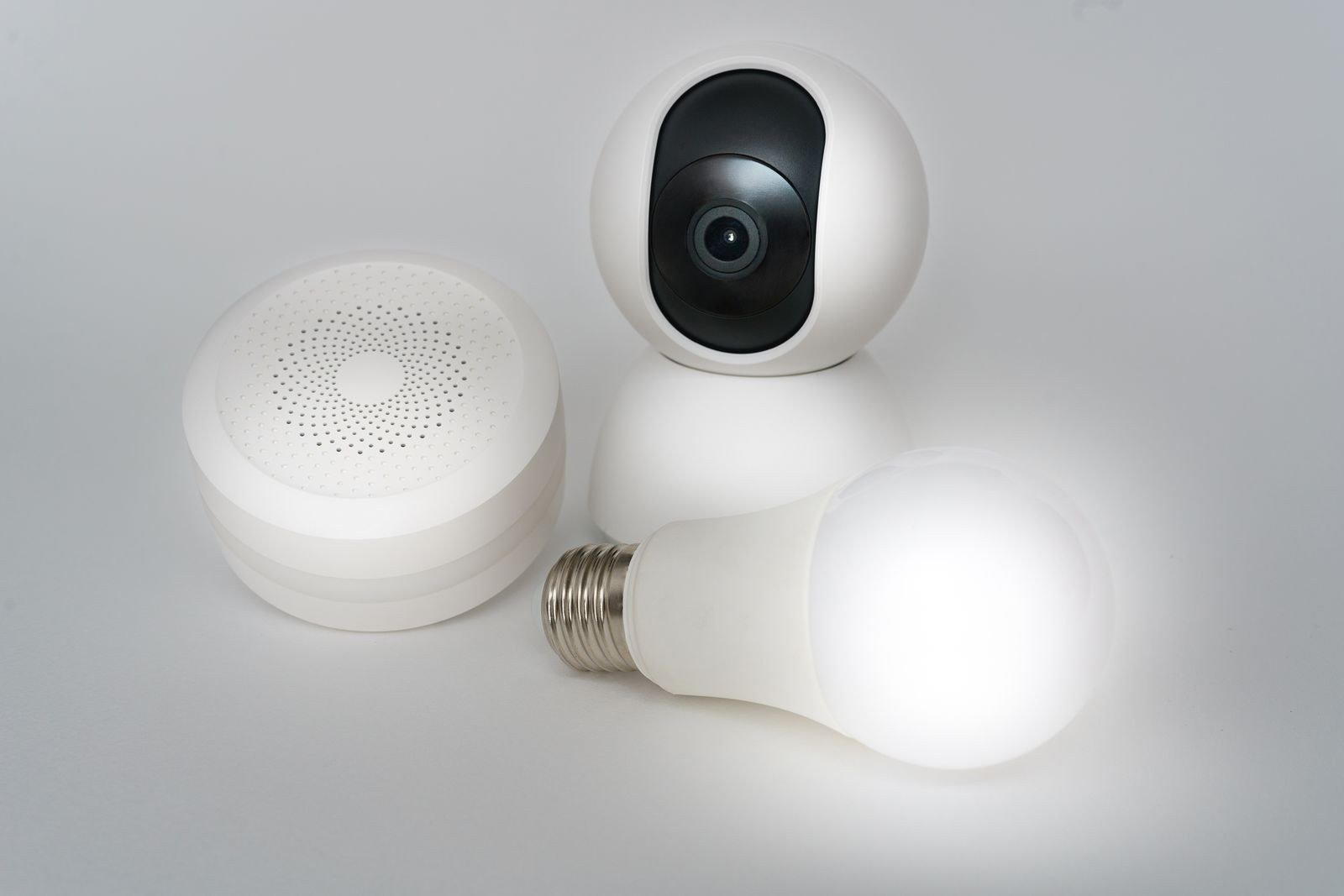
Smart devices are the smarter job. Smart plugs, bulbs, cameras, doorbells and bargain sensors are built down to a price, updated rarely (if ever) and made by companies you have never heard of. If one is ever compromised, you want it able to reach the internet and nothing else — which is exactly the guest network’s rule set. The UK’s National Cyber Security Centre’s guidance on smart devices in the home covers the companion habits: change default passwords, keep updates on, and switch off remote access you do not use. As a rule of thumb, anything that only ever talks to the internet — cameras, doorbells, speakers, plugs, bulbs, the robot vacuum — is a guest-network candidate. Anything that needs to talk to your devices stays on the main network: laptops, phones, games consoles you screen-share to, network storage, and the computer that runs your printer.
Setting it up: EE, mesh systems and router admin pages
EE customers have the tidiest route. EE’s own Guest WiFi help page walks through it: open the EE app, sign in, tap Manage, then Broadband, scroll to Guest WiFi, toggle it on, and choose a name and password. Your Wi-Fi drops for about a minute while it applies. EE is explicit that guest devices are kept separate from your main Wi-Fi — proper isolation, not just a second name. Note that EE’s earliest 2023 Smart Hub does not support guest networks, so if the option is missing from your app, an older hub is the likely reason.
Mesh systems (eero, TP-Link Deco, Google Nest Wifi, Orbi and similar) all offer a guest network in their apps — usually Settings or More, then Guest Network, toggle on, name and password. Deco owners should look one menu deeper: many Deco models offer a dedicated IoT Network as well as a guest network, which is arguably the better tool for the smart-device job — it is meant to be permanent, where guest networks on some systems are designed to be temporary.
Your own router or an older hub with the feature is managed from the admin page — the same login used in our separate guide to changing your Wi-Fi password. Look under Wireless, Wi-Fi or Guest Network. Switch it on, set a name (something obviously not your main network’s name) and a proper password, and confirm any setting labelled client isolation, AP isolation or “allow guests to see each other” is set to isolate. Save, let the router settle, and the new name should appear in your phone’s Wi-Fi list within a minute or two.
The honest gaps: hubs with no guest network
Here is the part most guides skip. Several of the biggest UK provider hubs have no guest network feature at all, and no firmware update is coming to fix it:
- BT Smart Hub 2 — no guest network in its settings. The workaround is a mesh system (which brings its own guest mode) or accepting the gap.
- Plusnet Hub Two — built on the same hardware family as BT’s hub, and the same story: no guest option.
- Virgin Media Hub 3, 4 and 5 — no true guest network setting in the hub’s menus, despite the size of the range.
- Sky hubs — historically no guest option on the standard Broadband Hub; check the My Sky app if you have a newer Max hub, as Sky’s newest kit is better featured.
- TalkTalk — split down the middle: the eero-based full fibre packages include a proper guest network in the eero app, while the older Wi-Fi Hub is far more limited.
If your hub is on the no list, the realistic fixes are a mesh system (which replaces the hub’s Wi-Fi entirely and brings guest and sometimes IoT networks with it) or a modest second router set up as an access point for guests and gadgets. What not to do is buy a plug-in “extender” expecting a guest network — extenders repeat an existing network; they do not create a separated one.
Moving your smart devices across (without the tears)
Do this on a quiet afternoon, not the night before guests arrive, and move devices in this order: least important first (plugs, bulbs), cameras and doorbell last, because those are the ones you will miss mid-move. Keep your phone on the network each device is joining while you set it up — most smart devices are added via an app that needs the phone and the gadget on the same network during pairing.
Three traps catch everyone. First, the 2.4GHz problem: most smart devices only speak 2.4GHz Wi-Fi, and many guest networks broadcast it happily — but if your router lets you restrict the guest network, make sure 2.4GHz is included or pairing will fail mysteriously. Second, casting and control: a smart TV or Chromecast on the guest network cannot be cast to from a phone on the main one, and some smart speakers get awkward about multi-room groups across networks. Keep TVs, streamers and speakers you control from your phone on whichever network your phone lives on, or accept the compromise knowingly. Third, the app amnesia problem: a few devices (older cameras especially) treat a network change as a full reset. Check the maker’s app for a “change Wi-Fi network” option before assuming you must start again.
When everything has moved, run a Wi-Fi speed test from a device on the guest network and one on the main network. The guest result should be in the same ballpark — if it is drastically slower, your router has a guest bandwidth cap switched on, which is a setting worth knowing about rather than a fault.
Sharing it with guests, properly
The finishing touch is to stop reading passwords aloud altogether. Our Wi-Fi QR code generator turns your guest network’s name and password into a QR code guests can scan — print it, frame it if you are feeling fancy, and when you eventually change the guest password you only reprint one card instead of re-connecting the whole house. Change the guest password after any period when it has been widely shared (a house party, a string of short-term guests, a sold property’s previous tenants if you have just moved in). And if you have never audited who is on your main network, our separate guide to seeing who is connected to your Wi-Fi is the natural companion job — do the audit first, then move the gadgets, and the list you end up defending is short and entirely yours.
Frequently asked questions
Does a guest network slow down my main Wi-Fi?
Barely, and only in the sense that guest devices share the same connection and the same airtime — a guest streaming 4K uses bandwidth exactly as if they were on the main network. The guest feature itself costs almost nothing. What can slow guests down is a bandwidth limit some routers apply to the guest network by default; if your guests complain while your own devices fly, that setting is the first place to look.
Can guests see my computers or files from the guest network?
Not on a properly set-up guest network — isolation is the whole design. Guests can reach the internet and nothing inside your home. You can prove it to yourself in two minutes: join the guest network on your phone, then try to open your printer, your network storage or the router’s admin page (some routers do still allow the admin page from guest networks, which is worth checking and is a reason to have changed the admin password from its default).
Should I put my work laptop on the guest network?
No — keep devices you own and trust on the main network. The guest network is for devices you do not fully control: visitors’ kit and cheap smart gadgets. Your work laptop gains nothing from isolation (it would lose access to your printer and storage) and your employer’s IT policies may assume a normal home network set-up. The one exception is a laptop belonging to a guest who is staying a while — guest network, every time.
My hub has no guest network. Is a second SSID the same thing?
No. Some routers can broadcast a second network name while leaving both networks fully connected to each other behind the scenes — that gives you the appearance of a guest network with none of the isolation that makes it worthwhile. What you are looking for is guest mode with client isolation, a dedicated IoT network on a mesh system, or nothing. If your provider hub offers none of those, a mesh system is the honest fix.
Do smart devices work properly on a guest network?
Most do — anything that simply talks to the maker’s cloud (cameras, doorbells, plugs, bulbs, vacuums) works identically. The friction appears with devices designed to talk to things in your home: casting to a TV or Chromecast from your phone, some smart speaker groups, and home-automation hubs that expect everything on one network. Move those specific devices back to the main network if they misbehave; the security prize is isolating the dumb, silent gadgets, and those move without a murmur.
The bottom line
Setting up guest Wi-Fi takes ten minutes on EE’s app, any mesh system, or a router with the feature — and it permanently changes what handing out your Wi-Fi password means. Guests get a code you can change without consequence, smart gadgets get a padded cell with an internet view, and your own devices stay out of sight. Finish the job by generating a QR code for the guest network with our Wi-Fi QR code generator, and the next “can I get on your Wi-Fi?” answers itself.