Some evening your stream stutters, you glance at the router, and a thought crosses your mind: how many things are actually on this network — and are they all mine? In a house with phones, laptops, TVs, consoles, plugs, cameras and a doorbell, the honest answer is usually “more than you think,” and learning how to see who is connected to your Wi-Fi turns a vague worry into a two-minute check. This guide shows you the three ways to see the list, how to tell a stranger from your own smart plug wearing a disguise, and how to remove anything that should not be there. Do the check now, from the SpeedTestUK homepage device you are reading on — no new software needed for the first method.
Way one: your provider’s app (the two-minute check)
The apps providers bundle with their hubs have quietly become the friendliest device lists going. Virgin Media’s Connect app has a My Devices section showing what is running through the Hub, and Virgin’s own advice is to look for anything unfamiliar there — you can pause or disconnect a device from the app on the spot. The My BT app’s Home Network section does the same job for BT customers, Sky’s app shows connected devices for its hubs, and most other providers and mesh systems (EE, TalkTalk’s eero-based setups, TP-Link Deco, Google Wifi) present the same list with names, connection type and usually the option to pause a device. Open the app, find Devices or My Devices, and simply count. If the total is roughly the number of gadgets you would expect and every entry looks like a thing you own, you are done — this is a check, not an emergency. The entries that deserve a second look have no name you recognise, or claim to be a type of device your house does not contain.
Way two: the router’s own device list (the full picture)
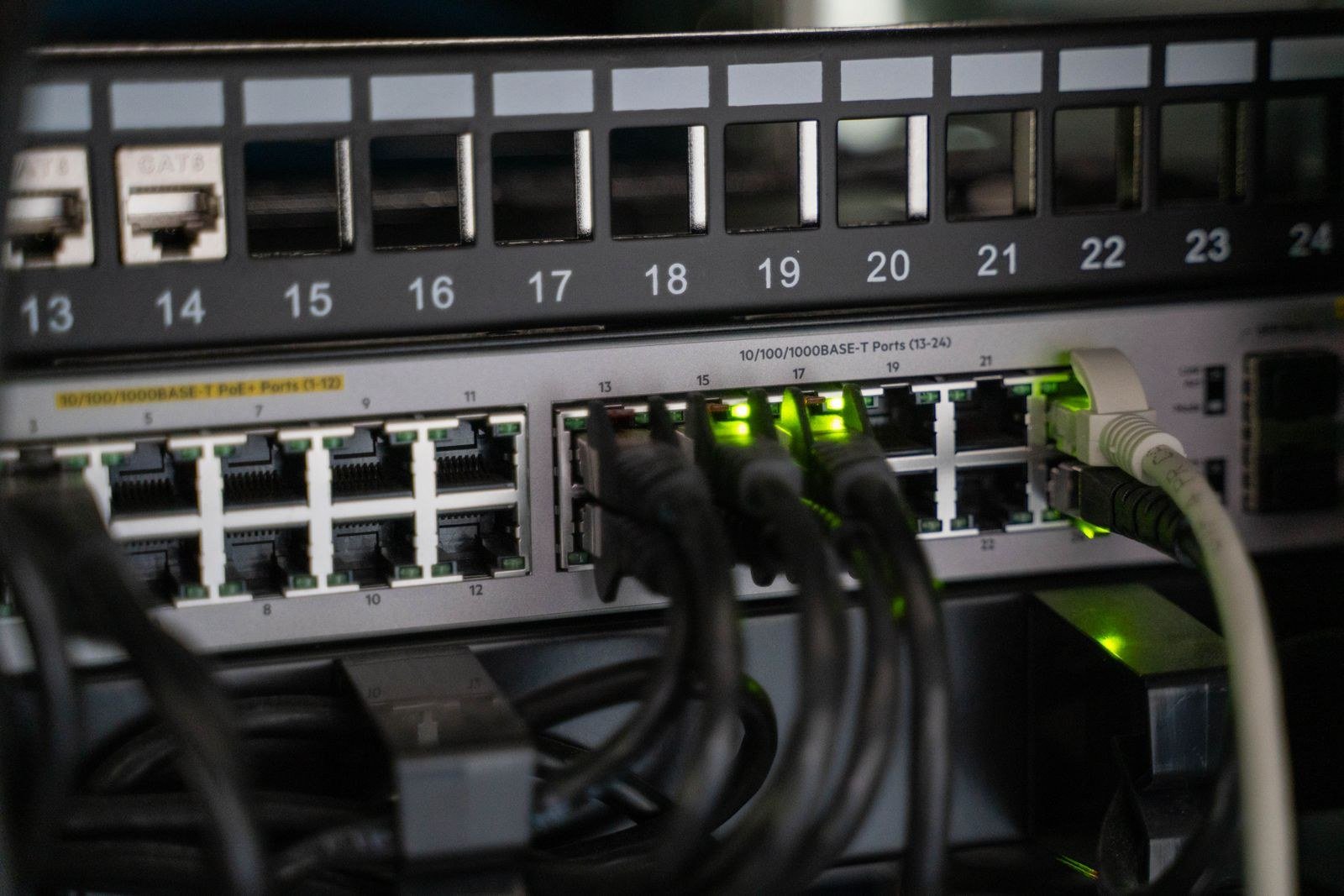
For the authoritative list, log in to the router itself — the addresses and sticker passwords are the same ones used to change your Wi-Fi password: 192.168.1.254 for BT, Plusnet and EE hubs, 192.168.0.1 for Virgin Media and Sky, 192.168.1.1 for TalkTalk. Once in, look for Connected Devices, Device List, My Devices or DHCP Clients. Every entry typically shows a hostname (sometimes helpful, sometimes a string of nonsense), a MAC address (the hardware identifier, looking like 3C:7A:9F:…), an IP address your router handed it (usually 192.168.x.x — a local address, a different thing entirely from the public address our What Is My IP tool shows the outside world), and whether it is connected on 2.4GHz, 5GHz or a cable. Take a screenshot or a photo of the list. That snapshot is your baseline — the next time you check, differences jump out instead of blurring into a sea of entries.
Way three: a network scanner (the independent view)
If your router’s list is confusing or suspiciously short, scan the network from a device on it. Apps such as Fing (phone) or Angry IP Scanner (computer) ask the network who is home and label devices by maker where they can — Apple, Samsung, Sonos, a printer, a camera. A scanner sees the same truth the router sees, presented better: model guesses, first-seen dates and alerts when something new joins, if you enable them. It is the method worth using if you are genuinely suspicious, because it catches anything connected right now rather than anything the router remembers. Run the scan, then compare it against your router list and your app list; three views of the same network should agree, and anything appearing in all three that you cannot identify deserves the detective work next.
The twist: most “strangers” are your own devices in disguise
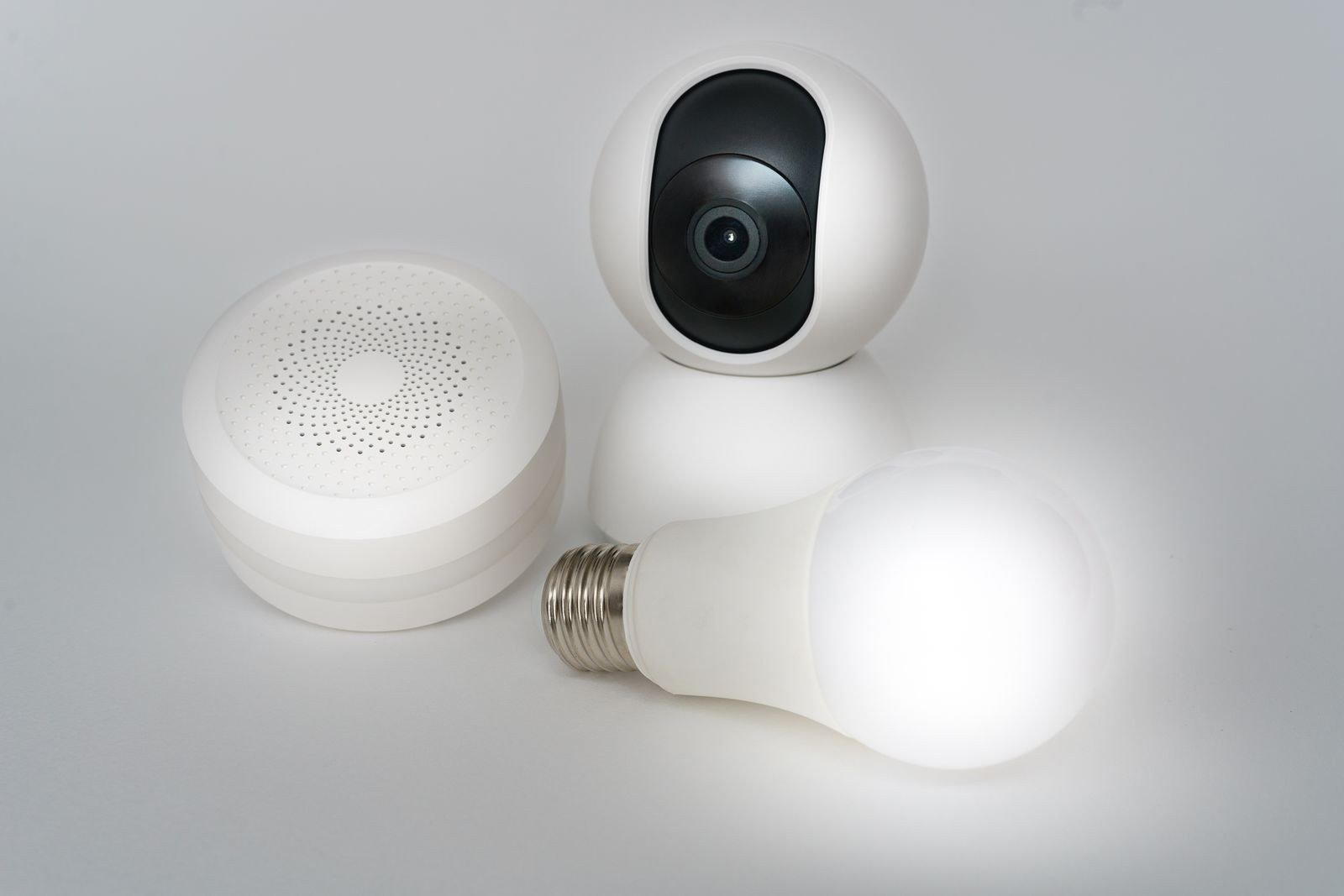
Before evicting anyone, understand why your own gadgets look guilty. Modern phones and laptops use private (randomised) MAC addresses on Wi-Fi — an anti-tracking feature — so your own phone may appear as an unnamed device with an unfamiliar identifier, and may appear again differently after an update. Smart plugs, bulbs and cameras often report chipmaker names (Espressif, Tuya, Shenzhen-something) instead of anything you would recognise. Games consoles sleep connected; TVs phone home at 3am; the printer has been on your network for six years. The reliable identification method is elimination: turn a suspect device’s Wi-Fi off (or unplug the gadget) and watch the list — the entry that vanishes was the device. Work through the odd entries one at a time, rename the confirmed ones in your app or router if it allows it (“Hallway plug” beats a MAC address forever), and keep the labelled list as your new baseline. Genuinely unknown means: connected recently, does not vanish when your kit is off, and matches nothing anyone in the house owns — including the smart meter display and the boiler controller everyone forgets.
Found something that is not yours? Eviction, in order
- Pause or block it first, if your app allows. Virgin’s Connect app and most mesh apps can pause a device immediately; some routers offer a block or MAC filter in their settings. Pausing stops the bleeding while you confirm — if a family member then shouts from another room, you have your answer and can unpause with honour intact.
- Change the Wi-Fi password. This is the real eviction: it disconnects everything, and only devices given the new password return. Our separate guide to changing your Wi-Fi password walks through every major router — take the opportunity to set a proper three-random-words password, the method the UK’s National Cyber Security Centre recommends, and check it with our password strength checker before you commit.
- Change the router’s admin password too, if it is still the factory default — the settings pages are the keys to the kingdom.
- Check the settings a stranger could have touched: security type should be WPA2 or WPA3 (never Open or WEP), WPS should be off unless you actively use it, and remote management from the internet should be off. Ofcom’s stay connected guidance includes the related habit of disconnecting devices you no longer use, which shrinks the list you have to audit.
- Re-run the scan in a week. A clean list that stays clean means the problem was an old password in wide circulation. An unknown device that returns after a password change means someone in the house is re-sharing it — a domestic conversation, not a technical one.
Make it a five-minute habit
You do not need to patrol your network daily. Once a month — or after guests, builders or a teenager’s birthday party — open the app, compare against your labelled baseline, and evict anything new and unexplained. Keep the list short by retiring old kit properly: when a phone or tablet leaves the house for good, forget your network on it. The natural moment to start the habit is today, alongside a password change, because the two jobs share the same login and the same ten minutes — change the password, reconnect only the devices you can name as each one asks, and the list you end up with is a verified baseline rather than a guess. Anything that never asks to come back was either retired kit or the freeloader you were worried about, and either way it is no longer on your network. And when the check is done, it is worth a Wi-Fi speed test as well, because a network carrying freeloaders is a network with less left for you — although in practice, a stranger quietly using your Wi-Fi costs you far less speed than the worry about it costs you sleep.
Frequently asked questions
Can I see who is on my Wi-Fi without logging in to the router?
Yes — your provider’s app is exactly that, and a network scanner app like Fing works without any router login too, since it asks the network itself from a device already connected. The router’s own list remains the most complete view (it also shows wired devices and things currently asleep), but for a quick routine check the app is enough for most households.
What does it mean if I see a device I don’t recognise at 3am?
Almost certainly something of yours, awake on schedule. TVs check for updates overnight, phones back up when charging, consoles download patches, and heating controls report in. The timestamps in most apps show when a device was last active rather than proving a human was using it. Identify by elimination during the day rather than panicking at night.
Can someone be on my Wi-Fi without the password?
Only through a gap you can close: WPS left enabled with a weak PIN, security set to Open or the obsolete WEP, or a guest network you created and forgot. Check all three in your router’s wireless settings while you are doing this audit. With WPA2 or WPA3 and a strong password, there is no casual way in — which is why the password change in the eviction steps matters more than any blocking feature.
Is it illegal for a neighbour to use my Wi-Fi?
In the UK, using someone’s internet connection without permission can fall foul of the Computer Misuse Act and the Communications Act — it is not the harmless borrowing it is sometimes framed as. In practice, most cases turn out to be a password you gave someone once (a neighbour during their outage, a guest, a tradesperson) rather than a determined intruder. Evict first, change the password, and save the legal questions for a situation that survives both.
My device list shows more devices than I own. Should I worry?
Count again, everything, including the sleeping and the stupid: smart TV, streaming stick, console, printer, doorbell, cameras, plugs, bulbs, thermostat, smart meter display, washing machine, everyone’s phone, tablet, laptop, watch and earbuds case. Most households reach 20–40 without trying. Worry about the entry that survives the elimination test, not the size of the list.
The bottom line
Knowing how to see who is connected to your Wi-Fi converts a nagging suspicion into a short, factual list — and between your provider’s app, the router’s own page and a scanner, at least one view will make sense of it. Identify before you evict, change the password when you do, and keep a labelled baseline so next month’s check takes five minutes. Run our password strength checker on whatever password the network ends up with, and your side of the router is as tidy as it reasonably gets.