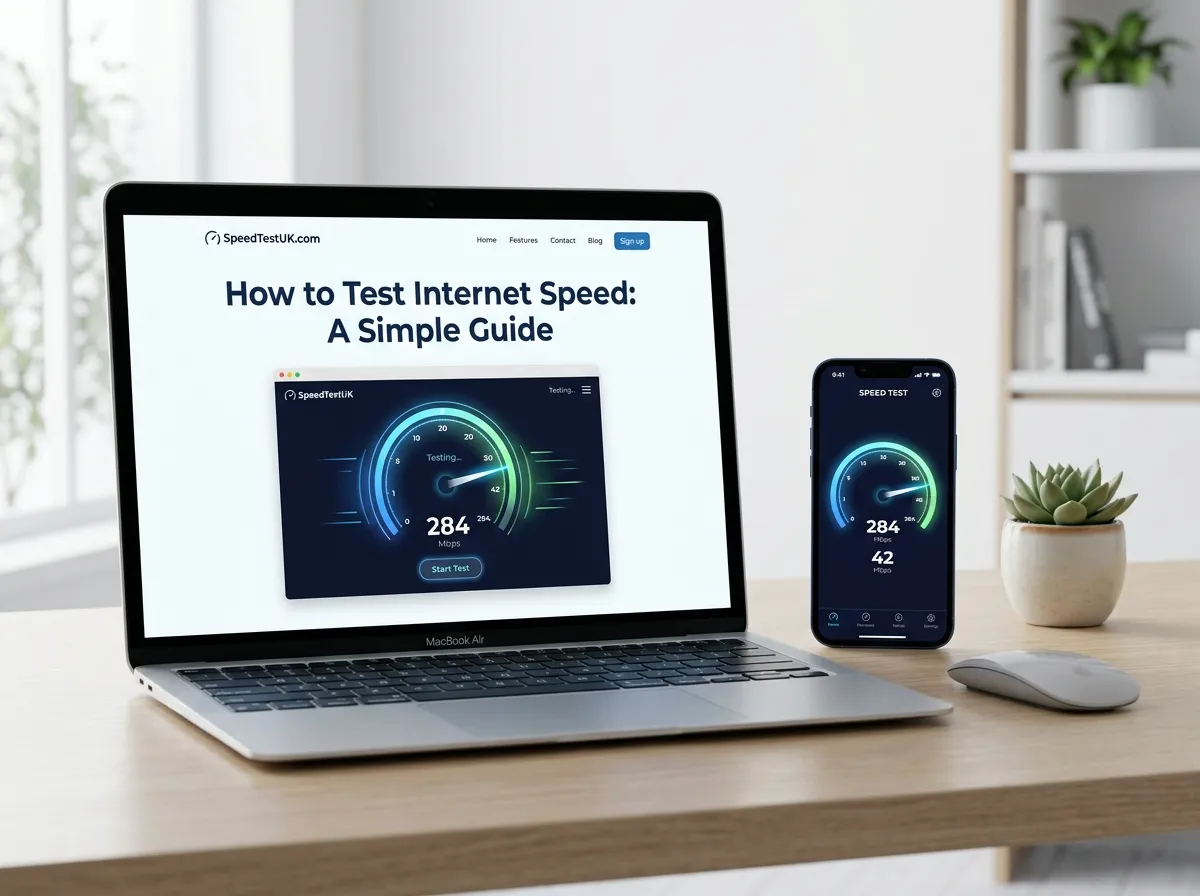
Want to know how fast your internet really is? An internet speed test can give you a quick idea of how well your connection is working.
Your broadband package may promise a certain speed, but the speed you actually get can be different. Your Wi-Fi signal, router, device, network traffic, and the number of people using your connection can all affect your results.
The good news is that checking your internet speed is simple.
You can use an online internet speed test to check your download speed, upload speed, and ping. For a more useful result, it is a good idea to test your connection more than once and at different times of day.
If you are in the UK and want to check your broadband performance, this guide explains everything in simple English.
What Is an Internet Speed Test?
An internet speed test measures how quickly data moves between your device and a test server.
Most speed tests show three main results:
| Result | What it means |
|---|---|
| Download speed | How quickly data comes to your device |
| Upload speed | How quickly data leaves your device |
| Ping | How quickly your connection responds |
| Latency | The delay between your device and the server |
| Jitter | How much the connection delay changes |
Internet speed is normally measured in Mbps, which means megabits per second.
For example, if your test shows 100 Mbps download, your connection can receive data at a much higher rate than a connection showing 20 Mbps.
However, a higher speed is not the only thing that matters. Ping, Wi-Fi quality, network congestion, and connection stability can also affect your online experience.
How to Test Internet Speed
The easiest way to test your connection is to use an online speed test tool.
Step 1: Close unnecessary apps and websites
Before starting the test, close applications and browser tabs that are using your internet connection.
Stop activities such as:
- Video streaming
- Large downloads
- Cloud backups
- Online games
- Video calls
- File uploads
- Other speed tests
This can help reduce extra network traffic during the test.
Step 2: Connect to your normal network
If you normally use Wi-Fi, you can test your Wi-Fi connection.
If you want to check the broadband connection more directly, connect a computer to your router using an Ethernet cable.
Ofcom recommends testing your broadband speed and notes that Wi-Fi can affect the speed you receive on a device.
Step 3: Open an internet speed test
Use our Internet Speed Test to start the test.
Click the test button and wait while the tool measures your connection.
The test may first check the connection to a nearby server and then measure different parts of your connection.
Step 4: Check your download speed
The first important result is usually your download speed.
Download speed tells you how quickly information can reach your device.
It can affect activities such as:
- Watching video
- Downloading apps
- Downloading games
- Opening large files
- Browsing websites
- Streaming music
For example, a 100 Mbps connection should generally handle everyday internet activities much more easily than a very slow connection.
Step 5: Check your upload speed
Next, look at your upload speed.
Upload speed measures how quickly your device can send data to the internet.
It matters when you:
- Upload photos
- Send large files
- Join video meetings
- Upload videos
- Back up files online
- Stream content
You can also use our Upload Speed Test to focus specifically on upload performance.
Step 6: Check your ping
Ping measures the response time between your device and a test server.
It is normally shown in milliseconds (ms).
A lower ping generally means less delay.
Ping is particularly important for:
- Online gaming
- Video calls
- Live streaming
- Remote work
- Real-time applications
You can learn more with our Ping Test.
Step 7: Run the test again
Do not rely on one result alone.
Your internet speed can change during the day. Ofcom recommends carrying out multiple tests over different days and at different times when investigating broadband performance.
Try testing:
- In the morning
- During the afternoon
- In the evening
- At peak usage times
- When fewer people are using your network
You can then compare the results.
How to Check Internet Speed on a Phone
You can test internet speed on most smartphones using a browser-based speed test.
First, connect your phone to your normal Wi-Fi network.
Then:
- Open your browser.
- Visit an internet speed test tool.
- Start the test.
- Wait for the test to finish.
- Check download speed.
- Check upload speed.
- Check ping.
- Repeat the test if necessary.
If you want to test the Wi-Fi connection, keep your phone in the location where you normally use it.
For example, if your Wi-Fi is slow in a bedroom, run the test there. A test beside your router may produce a very different result.
How to Check Wi-Fi Speed on a Computer
Testing Wi-Fi on a computer is also simple.
Connect your computer to your home Wi-Fi and run an online speed test.
For a useful comparison, run one test close to your router and another test in the room where you normally use the internet.
Your results can be different because walls, distance, other wireless devices, and router placement can affect Wi-Fi performance. Ofcom also notes that Wi-Fi speed can be affected by your router, device, distance, walls and interference.
If your computer supports Ethernet, you can also compare Wi-Fi with a wired connection.
Wi-Fi Speed vs Broadband Speed
These two terms are related, but they are not exactly the same.
Broadband speed is the speed of your internet service.
Wi-Fi speed is the speed between your device and your router over a wireless connection.
For example, imagine your broadband connection is capable of 300 Mbps.
Your phone may show a lower speed when it is far away from the router.
That does not automatically mean your broadband line is faulty.
The difference could be caused by:
- Distance from the router
- Walls
- Wireless interference
- Your device
- Router limitations
- Other connected devices
Ofcom explains that Wi-Fi cannot outperform the broadband service feeding your home, and Wi-Fi conditions inside the home can affect the speed experienced by devices.
How Fast Is My Internet?
The easiest way to answer “How fast is my internet?” is to run a speed test.
Your result may look something like this:
| Test result | Example |
|---|---|
| Download | 100 Mbps |
| Upload | 20 Mbps |
| Ping | 15 ms |
| Jitter | 4 ms |
These numbers tell you more than simply looking at your broadband package.
Your provider might advertise a certain speed, but the actual speed on your device can be different.
For this reason, testing your connection is useful when you want to understand your real-world performance.
What Is a Good Internet Speed?
There is no single internet speed that is perfect for everyone.
The right speed depends on how many people use your connection and what they do online.
Ofcom currently describes standard broadband as up to 30 Mbit/s, superfast broadband as 30–300 Mbit/s, and ultrafast broadband as 300 Mbit/s or more.
Here is a simple guide:
| Download speed | Possible use |
|---|---|
| Under 10 Mbps | Basic browsing and light use |
| 10–30 Mbps | Browsing, email and some streaming |
| 30–100 Mbps | Everyday home use and HD streaming |
| 100–300 Mbps | Multiple users, streaming and video calls |
| 300+ Mbps | Busy homes, large downloads and heavy use |
| 1 Gbps+ | Very high-bandwidth households and large downloads |
These are general examples rather than strict requirements.
Your experience can also depend on your Wi-Fi, device, server location, network traffic and other factors.
What Broadband Speed Do I Need?
The answer depends on your household.
One person who mainly browses websites may not need the same connection as a family where several people stream, work and play games at the same time.
Ofcom gives examples ranging from basic browsing and music at around 1 Mbit/s to higher requirements for multiple people streaming ultra-HD video.
| Household use | Suggested speed range |
|---|---|
| Basic browsing and email | 10–30 Mbps |
| One or two regular users | 30–100 Mbps |
| Streaming and video calls | 50–100+ Mbps |
| Several people online | 100–300 Mbps |
| Heavy streaming and gaming | 300 Mbps+ |
| Large downloads and busy households | 500 Mbps–1 Gbps+ |
The actual requirement can vary depending on the quality of video, number of devices and activities happening at the same time.
What Is a Good Download Speed?
A good download speed depends on what you do online.
Download speed is important when receiving data from the internet.
For example, it affects how quickly you can:
- Download games
- Download apps
- Watch online videos
- Load large files
- Stream high-quality content
If several people use the same connection at once, a higher download speed can help provide more available bandwidth.
If you are unsure about your current performance, run our Internet Speed Test and compare the result with the speed advertised by your provider.
What Is a Good Upload Speed?
Upload speed is often overlooked.
It measures how quickly your device sends data to the internet.
A higher upload speed can be useful for:
- Video calls
- Uploading videos
- Sending large files
- Cloud backups
- Live streaming
- Sharing high-resolution photos
For example, someone who mainly watches videos may care more about download speed, while someone who regularly uploads large files may benefit more from a strong upload connection.
You can check your result using our Upload Speed Test.
Which Broadband Speed Test Should You Use?
There are many internet speed test tools available online.
The most useful test is one that gives you clear information about your connection and lets you repeat the test easily.
When choosing a speed test, look for:
- Download speed
- Upload speed
- Ping or latency
- Easy-to-read results
- Mobile support
- Desktop support
- A nearby test server
- The ability to repeat the test
For UK broadband information, Ofcom provides consumer guidance on broadband speeds and recommends carrying out multiple tests when checking your connection.
How to Get More Accurate Speed Test Results
A speed test is only useful if the testing conditions are sensible.
Try these tips:
Use an Ethernet connection
If possible, connect your computer directly to your router with an Ethernet cable.
This removes much of the wireless connection from the test.
Ofcom recommends using an Ethernet-connected computer or tablet when looking for the most accurate possible broadband speed test.
Stop other internet activity
Pause downloads, streaming, cloud backups and other heavy activities.
Test more than once
One test gives you one snapshot.
Several tests give you a better picture.
Test at different times
Try testing during the morning and evening.
Internet performance can change depending on network usage and other factors.
Test close to the router
If you are testing Wi-Fi, first test close to the router.
Then test from your normal location.
This can help you understand whether the problem is with your broadband connection or your Wi-Fi coverage.
Why Is My Internet Speed Slow?
A slow speed test result does not always mean your broadband provider is the problem.
Several things can affect your result.
| Possible reason | How it can affect speed |
|---|---|
| Weak Wi-Fi | Lower speed on your device |
| Distance from router | Weaker wireless signal |
| Thick walls | Can reduce Wi-Fi performance |
| Many connected devices | More competition for bandwidth |
| Background downloads | Uses your connection |
| Old router | May limit performance |
| Network congestion | Speeds can change at busy times |
| Device limitations | Older hardware may perform differently |
Ofcom notes that factors such as the time of day, number of people using the connection, device setup and the broadband line itself can affect broadband performance.
What to Do If Your Speed Is Lower Than Expected
If your speed is consistently much lower than expected, start with simple checks.
First, restart your router.
Then test again.
You can also:
- Move your router to a better location.
- Reduce unnecessary Wi-Fi devices.
- Try an Ethernet connection.
- Check your router cables.
- Test another device.
- Test at different times.
- Check your broadband package.
- Contact your broadband provider if the problem continues.
Ofcom also recommends checking with your provider if your connection is not performing as expected.
If you are in the UK, you can also use the Ofcom broadband checker to check broadband availability and the types of service available at your address.
Internet Speed Test Results Explained
After completing a test, you may see several numbers.
Download speed
This shows how quickly data comes to your device.
It is important for streaming, browsing and downloading files.
Upload speed
This shows how quickly your device sends data to the internet.
It is important for video calls, cloud backups and uploading files.
Ping
Ping shows response time in milliseconds.
Lower latency is generally useful for activities that need quick responses.
Jitter
Jitter measures changes in latency.
High jitter can make real-time applications feel less stable.
Internet Speed Test vs Wi-Fi Speed Test
An internet speed test can measure the connection between your device and an external test server.
A Wi-Fi speed test focuses more on the wireless connection between your device and router.
This difference matters.
Imagine your broadband connection is fast but your Wi-Fi signal is weak.
Your wired speed test may show a strong result while your phone in another room shows a much lower result.
That is why testing from different locations can be useful.
How Often Should You Test Your Internet Speed?
You do not need to test your internet every day.
However, testing can be useful when:
- Your internet suddenly feels slow.
- Videos keep buffering.
- Online games have high lag.
- Video calls keep freezing.
- Downloads are unusually slow.
- You have just upgraded broadband.
- You think you are not receiving the expected speed.
If you are investigating an ongoing issue, take several tests over a few days and at different times.
This gives you more information than relying on a single result.
UK Broadband Speeds and Your Provider
When you buy broadband in the UK, your provider should give you information about the expected speed of your service.
Ofcom’s Broadband Speeds Code of Practice includes information about expected and minimum speeds and what customers can do if their connection does not perform as expected.
If your speed test results are consistently below what you expect, save your results and contact your provider.
It can be helpful to record:
- Date
- Time
- Download speed
- Upload speed
- Ping
- Connection type
- Device used
This makes it easier to compare results.
A Simple Internet Speed Test Checklist
Before testing, use this checklist:
| Check | Done? |
|---|---|
| Stop large downloads | ✓ |
| Stop video streaming | ✓ |
| Close unnecessary apps | ✓ |
| Connect to your normal network | ✓ |
| Test using Ethernet if possible | ✓ |
| Run the test | ✓ |
| Record download speed | ✓ |
| Record upload speed | ✓ |
| Record ping | ✓ |
| Repeat the test | ✓ |
Frequently Asked Questions
How do I test my internet speed?
Open an online internet speed test and start the test. It will normally measure download speed, upload speed and ping. For better results, stop other internet activity and repeat the test at different times.
What is a good internet speed in the UK?
There is no single speed that is right for every household. Your ideal speed depends on the number of users and what they do online. Ofcom classifies standard broadband as up to 30 Mbit/s, superfast as 30–300 Mbit/s and ultrafast as 300 Mbit/s or more.
How can I check how fast my internet is?
Use an internet speed test. The result will show how quickly your connection is downloading and uploading data and may also show your ping or latency.
Is Wi-Fi speed the same as broadband speed?
No. Broadband is the internet service entering your home, while Wi-Fi is the wireless connection between your router and devices. A weak Wi-Fi connection can produce a slower result even when your broadband service is fast.
Why is my internet slower than advertised?
Your actual speed can be affected by Wi-Fi, your device, network usage, router performance, connection type and other factors. If the speed remains consistently lower than expected, contact your broadband provider.
Should I test my speed with Wi-Fi or Ethernet?
If you want to understand your broadband line as closely as possible, an Ethernet-connected computer can provide a better test because it avoids many Wi-Fi factors. For checking your everyday Wi-Fi experience, test over Wi-Fi from the location where you normally use your device.
Does internet speed change during the day?
Yes. Your results can vary at different times. Other people using your connection and wider network conditions can affect performance. This is why testing at different times can give you a better picture.
What does Mbps mean?
Mbps means megabits per second. It is commonly used to describe internet and broadband speeds. A larger Mbps number generally means more data can be transferred per second.
What is ping in a speed test?
Ping is a measurement of response time between your device and a test server. It is usually measured in milliseconds. Lower latency is generally helpful for gaming, video calls and other real-time activities.
Can I test internet speed on my phone?
Yes. You can use a browser-based speed test on a smartphone. Connect to Wi-Fi if you want to check your Wi-Fi performance, or use mobile data if you want to check your mobile connection.
Final Thoughts
Testing your internet speed is one of the easiest ways to understand how your broadband connection is performing.
A good speed test can show your download speed, upload speed, ping and other connection information. If your result is lower than expected, do not immediately assume that your broadband line is faulty. Wi-Fi distance, walls, router placement, connected devices and other factors can affect the result.
For a clearer picture, test more than once, try different times of day and use an Ethernet connection when you want to check your broadband performance as closely as possible.
If you want to check your connection now, start with our Tools.
Check your internet connection with our fast and easy-to-use testing tools.
Popular Speed Test Tools




Pingback: Broadband Speed Test UK | Free Broadband Speed Checker