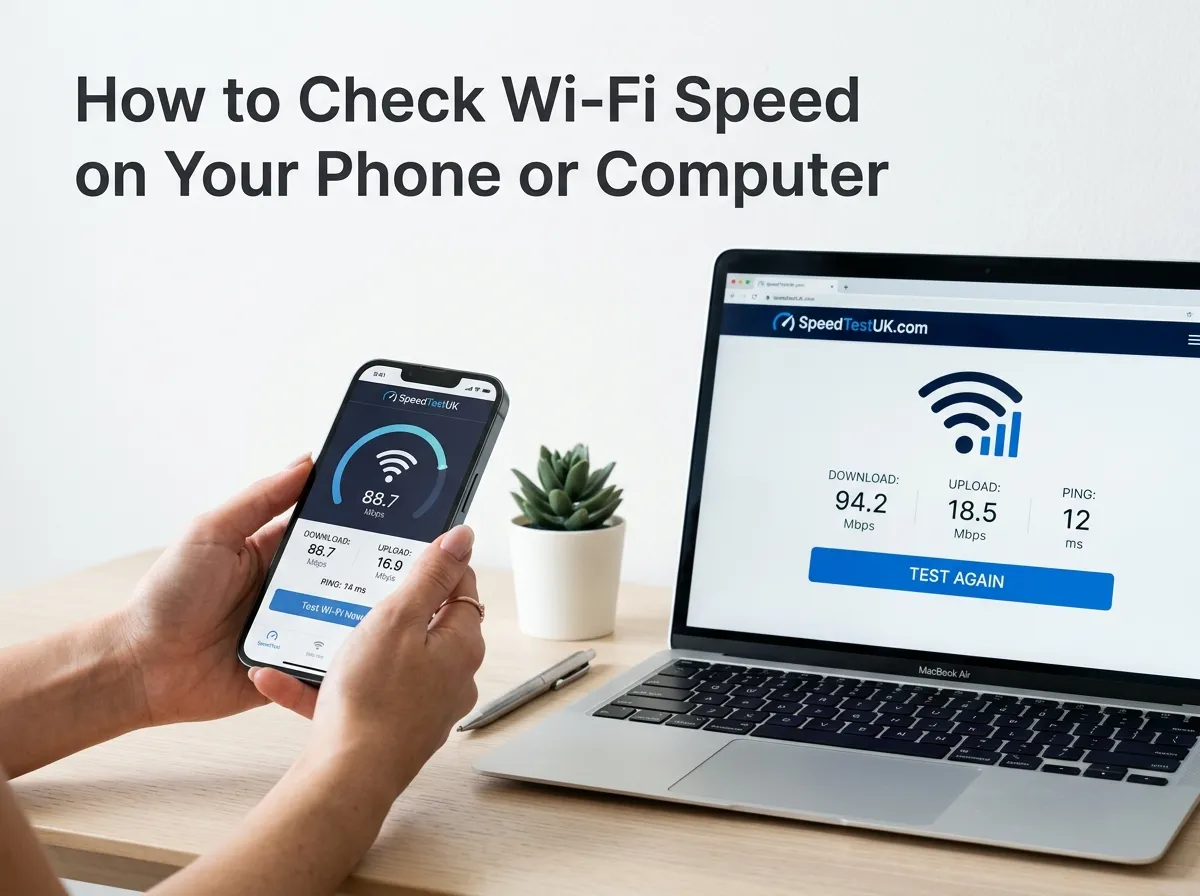
Want to know how fast your Wi-Fi is? You can check it in just a few minutes using an online Wi-Fi speed test.
A Wi-Fi speed test can show you important information about your connection, including download speed, upload speed, ping, and sometimes jitter. These results can help you understand why websites are slow, videos buffer, online games lag, or video calls freeze.
You do not need special equipment to perform a basic Wi-Fi speed test. A phone, tablet, laptop, or desktop computer with Wi-Fi is usually enough.
However, getting a useful result is about more than simply pressing the test button. Where you test, how far you are from the router, how many devices are using your network, and what your device is doing in the background can all affect the result.
This guide explains how to check Wi-Fi speed on your phone or computer, how to understand the results, and what you can do if your Wi-Fi is slower than expected.
What Is a Wi-Fi Speed Test?
A Wi-Fi speed test checks how your internet connection performs while your device is connected to the router through Wi-Fi.
Most tests measure:
| Result | What it tells you |
|---|---|
| Download speed | How quickly data comes to your device |
| Upload speed | How quickly your device sends data |
| Ping | The response time of the connection |
| Jitter | How much the latency changes |
| Connection quality | An indication of overall performance |
Speed is normally measured in Mbps, or megabits per second.
For example, a result of 100 Mbps download means the test measured a connection capable of transferring data at around that rate under the test conditions.
Your Wi-Fi speed does not always equal the speed of your broadband package.
Your broadband service may be very fast, while your phone or laptop gets a lower speed over Wi-Fi.
How to Check Wi-Fi Speed
The easiest way to check Wi-Fi speed is to use an online speed test.
Follow these steps:
- Connect your device to your home Wi-Fi.
- Close apps that are using the internet.
- Open an internet speed test.
- Start the test.
- Wait for the results.
- Check download speed.
- Check upload speed.
- Check ping and jitter if available.
- Repeat the test to compare the results.
You can start with our Wi-Fi Speed Test.
For the most useful comparison, test from more than one location in your home.
How to Check Wi-Fi Speed on Your Phone
Checking Wi-Fi speed on a smartphone is simple.
Connect your phone to Wi-Fi
First, make sure your phone is connected to the Wi-Fi network you want to test.
Check the Wi-Fi symbol at the top of your screen.
If your phone is using mobile data instead, you will not be testing your home Wi-Fi connection.
Close background activity
Before starting the test, pause anything that may use a lot of data.
For example:
- Video streaming
- App downloads
- Cloud backups
- Large file downloads
- Video uploads
- Automatic updates
This can help produce a more useful result.
Run the Wi-Fi speed test
Open your browser and visit our Wi-Fi Speed Test.
Start the test and wait for it to finish.
Write down the results if you want to compare different rooms.
Test different locations
Now move around your home.
For example, you could test:
| Location | Why test here? |
|---|---|
| Beside router | Shows strong Wi-Fi conditions |
| Living room | Common everyday location |
| Bedroom | Checks performance farther away |
| Upstairs | Checks performance through floors |
| Garden/extension | Tests the edge of Wi-Fi coverage |
If your speed drops significantly as you move away from the router, the issue may be related to Wi-Fi coverage rather than your broadband service.
How to Check Wi-Fi Speed on a Computer
You can check Wi-Fi speed on a laptop or desktop computer in almost the same way.
Connect your computer to Wi-Fi
Make sure your computer is connected to your home wireless network.
Then close unnecessary programs.
Start the test
Open your browser and use an online speed test.
You can use our Internet Speed Test to measure your connection.
Wait until the test is complete.
Record the results
Write down:
- Download speed
- Upload speed
- Ping
- Jitter, if shown
- Test location
- Time of test
This information can help you compare your Wi-Fi performance later.
How to Check Wi-Fi Speed on Windows
On a Windows computer, you can use a browser-based speed test.
You do not need to install special software for a basic test.
The process is:
- Connect to Wi-Fi.
- Open Chrome, Edge, Firefox, or another browser.
- Open a Wi-Fi speed test.
- Start the test.
- Wait for the results.
- Record the download and upload speeds.
- Repeat the test if necessary.
You can also compare the result with an Ethernet test.
Connect the same computer directly to your router with an Ethernet cable and run the test again.
If the wired result is much higher than the Wi-Fi result, the wireless connection may be limiting the speed you experience.
How to Check Wi-Fi Speed on a Mac
Mac users can also use a browser-based speed test.
Connect your Mac to your normal Wi-Fi network and close unnecessary applications.
Then:
- Open Safari or another browser.
- Open a speed test.
- Start the test.
- Wait for the result.
- Check download speed.
- Check upload speed.
- Check ping.
- Repeat the test from another location.
The same basic testing principles apply to Mac, Windows, Chromebook, tablets, and smartphones.
What Is a Good Wi-Fi Speed?
There is no single Wi-Fi speed that is considered good for everyone.
The right speed depends on:
- Number of people in your home
- Number of connected devices
- Type of online activity
- Broadband package
- Router
- Distance from the router
- Wi-Fi interference
As a simple guide:
| Wi-Fi download speed | General use |
|---|---|
| Under 10 Mbps | Basic browsing |
| 10–30 Mbps | Browsing, email and light streaming |
| 30–100 Mbps | Everyday home use |
| 100–300 Mbps | Multiple users and streaming |
| 300–500 Mbps | Busy homes and high-bandwidth use |
| 500 Mbps–1 Gbps+ | Very fast connections and many devices |
These are general guidelines, not fixed requirements.
For example, one person browsing websites may be comfortable with a much lower speed than a family where several people stream video, make video calls, download games, and use cloud services at the same time.
Ofcom’s UK broadband guidance distinguishes between standard, superfast, and ultrafast broadband based on connection speed.
Is Wi-Fi Speed the Same as Internet Speed?
No.
Internet or broadband speed refers to the speed of your internet connection.
Wi-Fi speed refers to the wireless connection between your device and router and the internet performance you experience through it.
For example:
Your broadband service could provide 500 Mbps, but your phone in a distant bedroom might receive considerably less over Wi-Fi.
This can happen because of:
- Distance
- Walls
- Interference
- Router position
- Wi-Fi technology
- Device capabilities
- Other wireless networks
Ofcom explains that Wi-Fi performance can be affected by factors inside your home, including distance and obstacles between your device and router.
Why Is My Wi-Fi Speed Slow?
There are many possible reasons for slow Wi-Fi.
| Possible problem | What can happen |
|---|---|
| Router is too far away | Weaker signal |
| Thick walls | Signal can be reduced |
| Too many devices | More network traffic |
| Wireless interference | Connection may become less stable |
| Old router | May not support newer Wi-Fi performance |
| Background downloads | Uses available bandwidth |
| Busy network | Speeds may vary |
| Older device | May have wireless limitations |
The first step is to test your Wi-Fi.
Do not guess the problem before checking the results.
Why Is My Wi-Fi Fast Near the Router but Slow in Another Room?
This is a common Wi-Fi problem.
Your router sends a wireless signal around your home, but the signal becomes weaker as distance increases.
Walls, floors, furniture, and other obstacles can also affect wireless performance.
For example:
| Test location | Example result |
|---|---|
| Next to router | 450 Mbps |
| Living room | 320 Mbps |
| Bedroom | 150 Mbps |
| Upstairs | 80 Mbps |
These numbers are only examples, but the pattern shows how distance can affect Wi-Fi performance.
If this happens in your home, test the same device in several locations.
How to Get a More Accurate Wi-Fi Speed Test
Your test result is affected by the conditions when you run it.
Use these tips for a cleaner test.
Test with one device
If possible, temporarily reduce heavy internet activity from other devices.
Stop streaming
Pause Netflix, YouTube, music streaming, and other high-bandwidth activities.
Stop downloads
Large downloads can use a significant amount of your available bandwidth.
Stay in the same location
When comparing two tests, try to keep the phone or computer in the same place.
Test more than once
One test is only one measurement.
Run several tests and compare the results.
Test at different times
Try morning, afternoon, and evening.
Your connection may perform differently when your household is busy.
Use the same device
If you are comparing results, using the same phone or computer makes the comparison more useful.
How to Test Wi-Fi Speed vs Ethernet Speed
One of the best ways to understand a Wi-Fi problem is to compare wireless and wired results.
First, connect your computer to Wi-Fi.
Run a speed test.
Then connect the same computer directly to your router using Ethernet.
Run the test again.
For example:
| Connection | Download | Upload | Ping |
|---|---|---|---|
| Wi-Fi | 180 Mbps | 18 Mbps | 22 ms |
| Ethernet | 290 Mbps | 20 Mbps | 12 ms |
These are example results.
If the Ethernet result is much better, your broadband service may be capable of higher performance than your Wi-Fi connection is delivering to that device.
Ofcom recommends Ethernet testing when checking broadband performance because it reduces the effect of Wi-Fi on the measurement.
What Does Download Speed Mean?
Download speed tells you how quickly information travels from the internet to your device.
It matters when you:
- Watch videos
- Download files
- Browse websites
- Download games
- Install apps
- Stream music
For example, if your download speed is 200 Mbps, your connection can transfer data much faster than a 20 Mbps connection under similar conditions.
What Does Upload Speed Mean?
Upload speed measures how quickly your device sends information to the internet.
It is important when you:
- Upload photos
- Upload videos
- Send large files
- Use cloud backups
- Make video calls
- Live stream
A connection can have a high download speed but a much lower upload speed.
That is normal for many broadband services.
Read guide to What Is a Good Upload Speed? for more information.
What Does Ping Mean in a Wi-Fi Test?
Ping measures how quickly your connection responds to a test server.
It is usually measured in milliseconds (ms).
A lower ping generally means less delay.
Ping can be particularly important for:
- Online gaming
- Video calls
- Remote desktop use
- Real-time applications
For example:
| Ping | General interpretation |
|---|---|
| Under 20 ms | Very responsive |
| 20–50 ms | Generally responsive |
| 50–100 ms | Usually usable |
| 100–200 ms | Noticeable delay may occur |
| Over 200 ms | Delay can become more noticeable |
These are general guidelines rather than strict limits.
What Is Jitter?
Jitter describes changes in latency over time.
A stable connection has relatively consistent response times.
High jitter can cause problems for activities where timing matters, such as:
- Online gaming
- Voice calls
- Video calls
- Live communication
If your Wi-Fi speed looks good but calls or games still feel unstable, checking jitter can provide another useful clue.
Does Router Location Affect Wi-Fi Speed?
Yes.
Where you place your router can affect Wi-Fi performance.
Try to place the router:
- In a central location
- Away from large obstacles
- Above the floor
- Away from sources of interference
- In an open area
Avoid hiding the router inside a cupboard if possible.
The goal is to give the wireless signal a clearer path around your home.
How Many Devices Can Use Wi-Fi at Once?
There is no single number that applies to every router.
The practical limit depends on:
- Router hardware
- Wi-Fi generation
- Broadband speed
- Device types
- Network traffic
- What each device is doing
A phone checking email uses much less bandwidth than a computer downloading a large game.
A home may have many connected devices but only a few actively using large amounts of bandwidth at one time.
Why Should You Test Wi-Fi in Different Rooms?
Testing different rooms helps you understand coverage.
For example:
Room A: 300 Mbps
Room B: 250 Mbps
Room C: 70 Mbps
If the speed drops sharply in one room, the location of the router or Wi-Fi coverage may be part of the problem.
This is more useful than running ten tests beside the router.
How to Improve Slow Wi-Fi
If your Wi-Fi test results are lower than expected, try these simple steps.
Restart your router
Turn the router off, wait briefly, and turn it back on.
Then test again.
Move your router
Try a more central and open location.
Reduce unnecessary traffic
Pause large downloads and streaming when you need maximum performance.
Test another device
A problem on one phone or laptop may not affect every device.
Compare Wi-Fi with Ethernet
A wired test can help separate Wi-Fi problems from broadband problems.
Check your router
Older equipment may not provide the same wireless performance as newer equipment.
Consider Wi-Fi coverage solutions
If one area of your home consistently has weak coverage, you may need to improve coverage using suitable networking equipment.
How to Know If the Problem Is Wi-Fi or Broadband
This is an important question.
You can use a simple comparison:
| Test | Result | What it may suggest |
|---|---|---|
| Wi-Fi near router | Fast | Wi-Fi works well nearby |
| Wi-Fi far away | Slow | Coverage may be an issue |
| Ethernet | Fast | Broadband connection may be healthy |
| Ethernet | Slow | Broadband/service may need investigation |
| All devices slow | Slow | Wider network issue possible |
| Only one device slow | Slow | Device-specific issue possible |
These tests do not prove the exact cause, but they can help narrow down where the problem may be.
When Should You Contact Your Broadband Provider?
Consider contacting your provider if:
- Your connection is consistently much slower than expected.
- Ethernet results are also unusually low.
- Your connection frequently drops.
- Problems continue after restarting your equipment.
- Multiple devices have the same issue.
- Your service does not appear to perform as expected.
Keep a record of your speed tests.
Record:
- Date
- Time
- Download speed
- Upload speed
- Ping
- Wi-Fi or Ethernet
- Device used
This information can make it easier to explain the problem to your provider.
A Simple Wi-Fi Testing Routine
If you want to properly check your home Wi-Fi, use this routine.
Test 1: Near the router
Stand close to the router and run a speed test.
Test 2: Normal location
Move to the place where you usually use your phone or computer.
Test 3: Problem location
Test the room where your Wi-Fi seems slow.
Test 4: Ethernet
If possible, connect the same computer directly to the router.
Test 5: Compare
Put the results side by side.
This can help you identify whether the issue appears to be related to Wi-Fi coverage or the broadband connection itself.
Wi-Fi Speed Test Results Example
Here is an example of what your results might look like:
| Test location | Download | Upload | Ping |
|---|---|---|---|
| Near router | 420 Mbps | 40 Mbps | 11 ms |
| Living room | 330 Mbps | 36 Mbps | 14 ms |
| Bedroom | 180 Mbps | 30 Mbps | 20 ms |
| Upstairs | 95 Mbps | 20 Mbps | 28 ms |
Again, these numbers are examples only.
The important thing is the pattern.
If performance drops as you move farther from the router, you may have a Wi-Fi coverage issue.
Frequently Asked Questions
How do I check my Wi-Fi speed?
Connect your phone, laptop, or computer to Wi-Fi and use an online Wi-Fi speed test. Run the test and check your download speed, upload speed, and ping.
How can I check Wi-Fi speed on my phone?
Connect your phone to the Wi-Fi network, open a browser, and use a Wi-Fi speed test. Make sure mobile data is not being used if you want to test your home Wi-Fi.
How can I check Wi-Fi speed on my computer?
Connect your computer to Wi-Fi and open an online speed test. Close unnecessary downloads and applications, then run the test.
What is a good Wi-Fi speed?
There is no single number that is good for every home. Your required speed depends on the number of users, devices, and online activities. A speed of 100 Mbps can be suitable for many everyday home activities, while busy households may need considerably more.
Why is my Wi-Fi slower than my broadband speed?
Wi-Fi can be affected by distance, walls, interference, router performance, your device, and other factors. Your broadband service can be fast while your wireless connection delivers a lower speed to a particular device.
Why is Wi-Fi slow in one room?
Distance from the router, walls, floors, furniture, and wireless interference can reduce Wi-Fi performance. Test the same device near the router and in the problem room to compare the results.
Should I test Wi-Fi near my router?
Yes. Testing near your router can provide a useful baseline. You can then test in other rooms to see whether performance changes with distance.
Is Ethernet faster than Wi-Fi?
Ethernet can provide a more consistent connection because it avoids many wireless factors. The actual speed depends on your broadband service, router, Ethernet hardware, and other equipment.
How often should I test my Wi-Fi?
You do not need to test every day. Test when your connection feels slow, after changing your broadband service or router, or when you want to investigate a Wi-Fi problem.
Does the number of devices affect Wi-Fi speed?
It can. Devices that actively use large amounts of bandwidth can reduce the bandwidth available to other devices. The effect depends on what the devices are doing and the capacity of your network.
Can a speed test tell me if my router is bad?
A speed test alone cannot prove that a router is faulty. However, comparing Wi-Fi results with Ethernet results and testing different devices can help identify whether the router or wireless network may be contributing to the problem.
Final Thoughts
Knowing how to check Wi-Fi speed is a simple way to understand your home internet connection.
A quick test can show your download speed, upload speed, ping, and sometimes jitter. For better information, do not test only once. Check your Wi-Fi near the router, in your normal location, and in rooms where the connection feels slow.
If your Wi-Fi speed is much lower in one area, the problem may be related to wireless coverage. If both Wi-Fi and Ethernet tests are consistently slow, your broadband connection may need further investigation.
For UK broadband information and guidance, check the official Ofcom resources as well.
Popular Speed Test Tools
Check your internet connection with our fast and easy-to-use testing tools.