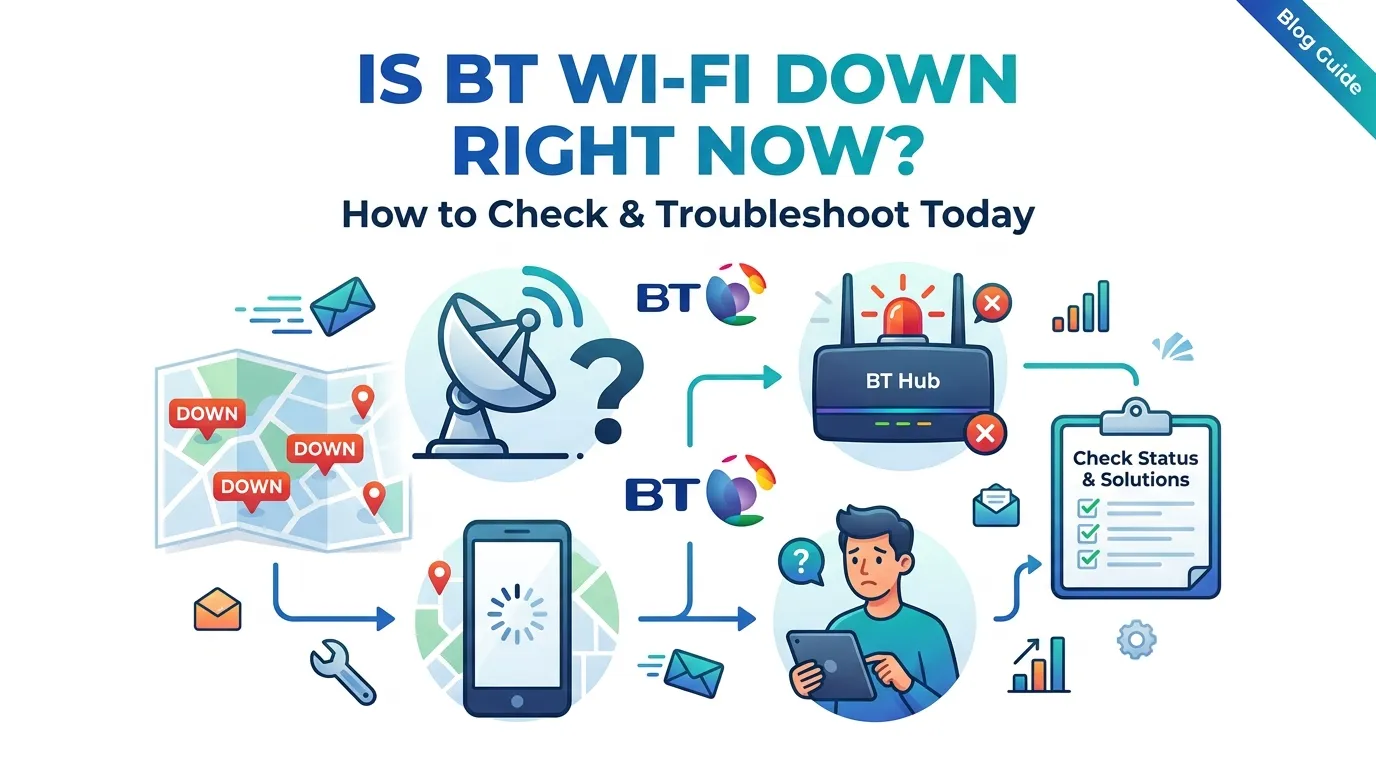
If you are asking “Is BT Wi-Fi down?”, the problem may not always be a BT network outage. Your BT Wi-Fi can stop working because of a problem with the BT Hub, your phone or computer, weak wireless coverage, interference, or your broadband connection.
The good news is that many BT Wi-Fi problems can be checked at home. You can test another device, check the lights on your BT Hub, restart the Hub, improve its position and run an internet speed test. BT also provides online troubleshooting tools that can test your broadband connection and help identify faults.
Check Your Internet Speed here.
Is BT Wi-Fi Down Right Now?
If your BT Wi-Fi is not working, do not immediately assume that BT’s entire network is down.
First, check whether the problem affects:
- One device
- Several devices
- Every device in your home
- Wi-Fi only
- Both Wi-Fi and wired internet
If only one phone or laptop cannot connect, the problem could be with that device.
If every device has lost internet access, the issue could be related to your BT Hub, broadband connection or a wider service problem.
BT recommends using its broadband troubleshooter to test the connection when you are experiencing broadband problems.
How to Tell If Your BT Wi-Fi Is Down
A quick test can help you understand what is happening.
| What you see | Possible reason |
|---|---|
| One device cannot connect | Device or Wi-Fi settings |
| Several devices cannot connect | Wi-Fi or Hub problem |
| Wi-Fi connects but websites do not load | Broadband or internet connection problem |
| Ethernet works but Wi-Fi does not | Wireless problem |
| Internet is very slow | Wi-Fi signal, broadband, device or network issue |
| BT Hub has an unusual light | Hub or broadband connection problem |
| Wi-Fi works near the Hub but not upstairs | Weak Wi-Fi coverage |
This table is only a starting point. The same symptom can have different causes.
Check Another Device First
One of the easiest troubleshooting steps is to test another device.
For example, if your laptop will not connect to BT Wi-Fi, try your phone.
If your phone connects normally, the problem may be limited to your laptop.
If neither device connects, check your BT Hub and broadband connection.
You can also turn Wi-Fi off on your device, wait a few seconds and turn it back on. BT recommends restarting devices as part of its Wi-Fi troubleshooting guidance.
Check Your BT Hub
Your BT Hub provides useful information through its status lights.
The exact lights depend on the Hub model you have.
For current BT Smart Hub models, BT says a solid blue light indicates that the Hub is connected to broadband. If the Hub is connected but a device cannot get online, BT suggests checking or restarting the device.
A solid orange light indicates that the Hub is working but is not connected to the internet. BT recommends restarting the Hub and checking the connection if the problem continues.
| BT Hub light | What it can indicate |
|---|---|
| Solid blue | Hub connected to broadband |
| Solid orange | Hub is not connected to the internet |
| No light | Hub may be powered off or lights may be disabled |
| Other flashing/status lights | Check the instructions for your specific Hub |
Different BT Hub models can use different light patterns, so check the official BT guidance for your exact model.
Restart Your BT Hub
Restarting your BT Hub can fix some temporary connection problems.
BT recommends turning the Hub off and waiting before turning it back on. Its broadband troubleshooting guidance specifically recommends switching the Hub off, waiting around five minutes and then switching it back on.
Try these steps:
- Press the power button on the back of the BT Hub.
- Wait until the lights go off.
- Leave the Hub switched off for around five minutes.
- Turn the Hub back on.
- Wait for the Hub to finish starting.
- Try connecting your device again.
Do not repeatedly restart the Hub every few minutes. Give it enough time to reconnect to the broadband service.
Check Your BT Broadband Connection
Wi-Fi and broadband are not exactly the same thing.
Wi-Fi is the wireless connection between your device and the BT Hub.
Broadband is the internet connection coming into your home.
This means your Wi-Fi can be working even when your broadband connection is not.
For example, your phone might show that it is connected to your BT Wi-Fi network, but websites may still fail to load because the BT Hub has lost its broadband connection.
BT explains that broadband speed is the connection to the BT Hub, while the speed received by individual devices can be affected by Wi-Fi and other factors.
Test Your BT Internet Speed
If your BT Wi-Fi is connected but feels slow, run a speed test.
You can use the Speed Test UK tool to check your:
- Download speed
- Upload speed
- Ping
- Overall connection performance
You can test your connection here:
For a more useful result, try the following:
- Close large downloads.
- Pause streaming services.
- Stop unnecessary cloud backups.
- Test close to your BT Hub.
- Run the test.
- Record the result.
- Repeat the test later if necessary.
BT also explains that speed on your device can be lower than the speed reaching the Hub because of Wi-Fi, distance from the Hub, connected devices and other activity on the network.
Why Is My BT Wi-Fi Slow?
Slow BT Wi-Fi does not automatically mean BT broadband is slow.
Your wireless signal can be affected by the position of your Hub, walls, furniture, other equipment and the distance between the Hub and your device.
BT recommends placing the Hub in a suitable central position, keeping it away from cupboards, floors, metal objects and other things that can interfere with the wireless signal.
Common Reasons for Slow BT Wi-Fi
- Router placed too far from your device
- Thick walls
- Hub placed inside a cupboard
- Hub placed on the floor
- Metal objects near the Hub
- Too many connected devices
- Older Wi-Fi equipment
- Device problems
- Wireless interference
- Broadband connection problems
Before upgrading your broadband package, check your Wi-Fi setup.
Move Your BT Hub to a Better Location
The location of your BT Hub can make a noticeable difference.
BT recommends placing the Hub around the middle of your home so the wireless signal can reach more areas. It also recommends keeping the Hub away from windows, cupboards and metal objects.
A good location is generally:
- On a shelf or table
- Away from the floor
- Away from large metal objects
- Away from enclosed cupboards
- In a central area of the home
- Away from unnecessary obstacles
Do not hide your Hub simply because you want to keep your room looking tidy. A closed cupboard can reduce wireless performance.
Why Does BT Wi-Fi Work in One Room but Not Another?
This is often a Wi-Fi coverage problem rather than a complete BT broadband outage.
For example, you might receive a strong connection next to the BT Hub but a weak connection upstairs or at the other end of the house.
Walls, floors and distance can reduce wireless signal strength.
BT offers Wi-Fi products and services designed to extend coverage around the home, including Wi-Fi Discs through Complete Wi-Fi options.
Before buying additional equipment, test the connection in different rooms.
Does Ethernet Work When BT Wi-Fi Does Not?
If you have a suitable Ethernet cable and device, connecting directly to the BT Hub can help identify the problem.
If the Ethernet connection works well but Wi-Fi is slow or unavailable, the broadband connection may be working while the wireless connection needs attention.
If neither Ethernet nor Wi-Fi works, the problem may be related to the broadband connection, Hub or service.
This is one reason why testing with more than one connection method can be useful.
Check Your BT Wi-Fi Frequency
Many BT Hubs use both 2.4 GHz and 5 GHz Wi-Fi bands.
BT explains that some devices can have problems when both bands use the same network name. This can result in a device failing to connect, connecting intermittently or experiencing slow Wi-Fi.
Older devices can sometimes have compatibility problems with newer wireless settings.
If only one older device is having trouble while other devices work normally, check that device’s Wi-Fi compatibility and BT’s guidance for your Hub model.
What If Only One Device Cannot Connect?
If your BT Wi-Fi works on other devices, the problem may not be with BT.
Try:
- Turn Wi-Fi off on the affected device.
- Turn Wi-Fi back on.
- Restart the device.
- Forget the BT Wi-Fi network.
- Connect to the network again.
- Check that the Wi-Fi password is correct.
- Test another device.
If other phones, tablets and computers connect normally, concentrate your troubleshooting on the affected device.
What If No Devices Can Connect?
If none of your devices can connect to BT Wi-Fi, check the Hub.
Start by checking:
- Power cable
- Hub lights
- Broadband cable
- Wi-Fi settings
- Hub location
- Service status
- Broadband connection
Then restart the Hub.
BT’s official broadband troubleshooting guidance recommends checking the Hub lights and restarting the Hub when connection problems occur.
Could BT Wi-Fi Be Down Because of a Service Problem?
Yes, a wider BT service problem can affect your broadband connection.
However, a local Wi-Fi problem can look very similar.
If every device is offline and the Hub indicates that it is not connected to broadband, check BT’s official troubleshooting and service information.
BT says its online troubleshooter can run tests on your connection and, when a problem cannot be fixed online, help arrange an engineer appointment.
BT Wi-Fi Down or BT Broadband Down?
These terms are often confused.
| BT Wi-Fi problem | BT broadband problem |
|---|---|
| Wireless connection is weak | Internet connection is unavailable |
| Only one room may be affected | Whole home may be affected |
| Ethernet may work | Ethernet may also fail |
| Router location may be the issue | Line, network or Hub may be the issue |
| Signal interference may be involved | Service fault may be involved |
The distinction matters because the solution can be completely different.
If Ethernet works but Wi-Fi does not, buying a faster broadband package may not solve the problem.
How to Check if BT Wi-Fi Is Working Properly
Use this simple checklist:
Step 1: Check another device
Try another phone, tablet or laptop.
Step 2: Check the Hub
Look at the status lights.
Step 3: Restart the device
Turn Wi-Fi off and on, then restart the device if necessary.
Step 4: Restart the Hub
Turn it off, wait several minutes and turn it back on.
Step 5: Test your speed
Use Speed Test UK to measure your connection.
Step 6: Test near the Hub
Move close to the router and repeat the test.
Step 7: Try Ethernet
If possible, compare Wi-Fi with a wired connection.
Step 8: Check BT’s troubleshooting service
If the problem continues, use BT’s official broadband troubleshooter.
Why Use Speed Test UK for BT Wi-Fi Problems?
A speed test is useful because it gives you actual information about your connection instead of relying only on how the internet feels.
For example, you may think your BT broadband is slow because a video is buffering. However, the problem could be Wi-Fi coverage, the streaming service, your device or temporary network activity.
A Speed Test UK result gives you measurements for download speed, upload speed and ping.
You can then repeat the test:
- Near the BT Hub
- In another room
- At different times
- On another device
- Over Ethernet, if available
This comparison can help you understand whether the problem is related to Wi-Fi coverage or the wider broadband connection.
When Should You Contact BT?
You should consider contacting BT or using its official troubleshooting service if:
- No devices can access the internet
- Your Hub repeatedly loses connection
- The Hub shows an abnormal status
- Restarting the Hub does not help
- Your broadband remains unavailable
- Your connection repeatedly drops
- Speed problems continue across multiple devices
- Your wired connection is also affected
BT’s online troubleshooting service can test the connection and may help arrange an engineer if the issue cannot be fixed remotely.
What Information Should You Have Before Contacting BT?
If you need BT support, collect some basic information first.
Keep a note of:
- When the problem started
- Which devices are affected
- Whether Ethernet works
- BT Hub light status
- Download speed
- Upload speed
- Ping
- Whether the problem happens in every room
- Whether restarting the Hub helped
This can make it easier to explain the problem.
Frequently Asked Questions About BT Wi-Fi
Is BT Wi-Fi down?
If your BT Wi-Fi is not working, it could be a local Wi-Fi problem, a Hub problem or a broadband service issue. Test another device and check your BT Hub before assuming there is a wider outage.
Why is my BT Wi-Fi not working?
Possible causes include a problem with your device, BT Hub, Wi-Fi settings, wireless coverage or broadband connection.
Why is my BT Wi-Fi connected but there is no internet?
Your device can be connected to the BT Hub through Wi-Fi even when the Hub has lost its internet connection. Check the Hub lights and run BT’s broadband troubleshooting tools.
How do I restart my BT Hub?
Turn the Hub off, wait several minutes and switch it back on. BT recommends allowing the Hub time to restart and reconnect.
What does a blue light mean on a BT Hub?
For current BT Smart Hub guidance, a solid blue light means the Hub is connected to broadband. If your device still cannot get online, the problem may be with the device or Wi-Fi connection.
What does an orange light mean on a BT Hub?
BT says a solid orange light on relevant Hub models means the Hub is working but is not connected to the internet. Restarting the Hub and checking the connection are recommended troubleshooting steps.
Why is BT Wi-Fi slow upstairs?
Distance, walls and other physical obstacles can weaken the Wi-Fi signal. BT recommends placing the Hub in a central location and away from cupboards, floors and metal objects.
Why does my BT Wi-Fi work on my phone but not my laptop?
The problem may be specific to your laptop. Restart the laptop, turn Wi-Fi off and on, forget the BT network and reconnect.
Can I check my BT Wi-Fi speed?
Yes. You can use the Speed Test UK tool to check download speed, upload speed and ping. Testing near the Hub and in different rooms can help you compare Wi-Fi performance.
Does a speed test tell me if BT is down?
No. A speed test can show how your connection is performing from your device, but it cannot by itself confirm a BT-wide outage.
Should I upgrade my BT broadband if my Wi-Fi is slow?
Not necessarily. Slow Wi-Fi can be caused by router location, walls, device limitations or wireless interference. Test the connection near the Hub first before deciding that you need a faster broadband package.
Conclusion
If you are searching “Is BT Wi-Fi down?”, start by checking whether the problem affects one device or your entire home.
Test another device, check your BT Hub lights and restart the Hub. If your Wi-Fi is slow rather than completely unavailable, test your connection near the Hub and compare the results with another room.
Remember that BT Wi-Fi and BT broadband are not the same thing. Your broadband connection may be working while your home’s wireless signal is weak.
You can use Speed Test UK to check your download speed, upload speed and ping. Testing at different locations and times can give you a clearer picture of your connection.
If the problem affects all devices, continues after restarting the Hub or appears to be a broadband connection fault, use BT’s official troubleshooter for further testing and support.
Select your broadband provider and check your internet speed with our
dedicated UK speed test.
Check your BT broadband speed. Check your EE broadband speed. Check your Sky broadband speed. Check your Virgin Media speed. Check your Vodafone broadband speed. Check your Plusnet broadband speed. Check your TalkTalk broadband speed. Check your Zen broadband speed.
Check your internet connection with our fast and easy-to-use testing tools.
UK Broadband Provider Speed Tests
BT Broadband
EE Broadband
Sky Broadband
Virgin Media
Vodafone UK
Plusnet
TalkTalk
Zen Internet
Popular Speed Test Tools