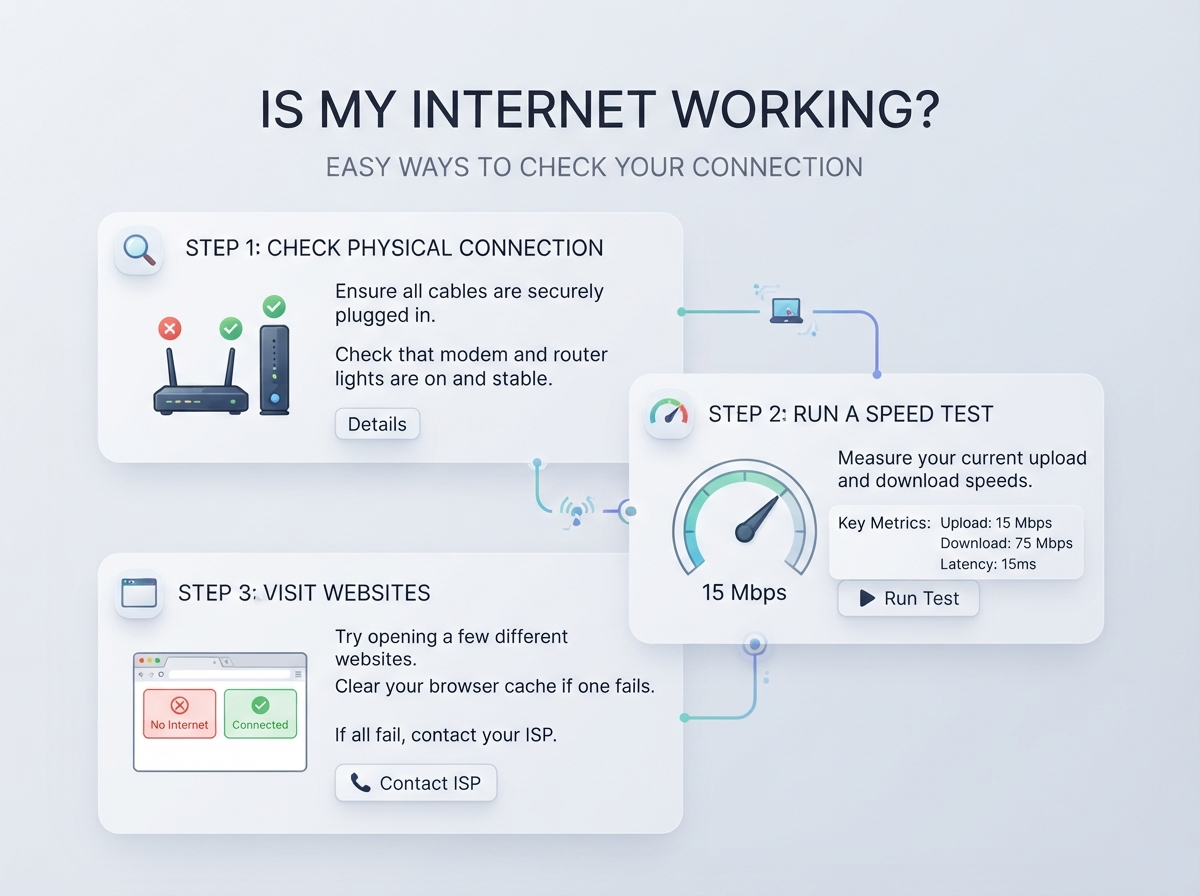
If a website is not loading, a video keeps buffering, or your phone says it is connected to Wi-Fi but nothing works, you may be asking, “Is my internet working?”
There are several easy ways to check your internet connection before contacting your broadband provider.
You can test your connection by opening another website, checking your Wi-Fi, restarting your router, running an internet speed test, or checking whether there is a broadband outage in your area.
This guide explains simple steps that anyone can follow. You do not need technical knowledge or special equipment.
How to Check If Your Internet Is Working
The quickest way to check your internet is to open a few different websites.
Try websites such as Google, BBC, or another website that you normally use.
If one website does not open but other websites work, the problem may be with that particular website rather than your internet connection.
If no websites open, your internet connection may have a problem.
Here is a simple check:
| Test | What It Means |
|---|---|
| One website does not load | The website may have a problem |
| Several websites do not load | Your connection may have a problem |
| Websites load very slowly | Internet may be slow or congested |
| Nothing loads on Wi-Fi | Wi-Fi or broadband may be down |
| Mobile data works but Wi-Fi does not | Your home Wi-Fi may have a problem |
| Wi-Fi works but internet does not | Router or broadband connection may be down |
Check Your Wi-Fi Connection
Look at the Wi-Fi symbol on your phone, tablet, laptop, or computer.
If you see the Wi-Fi symbol, your device is connected to the wireless network. However, this does not always mean that the internet itself is working.
Your device can be connected to your router while the router has lost its broadband connection.
Try these simple steps:
- Turn Wi-Fi off on your device.
- Wait a few seconds.
- Turn Wi-Fi back on.
- Connect to your home network again.
- Open a website.
- Check if the internet works.
If other devices connected to the same Wi-Fi also cannot access the internet, the problem is more likely to be with your router or broadband connection.
Try Another Device
Another easy way to find the problem is to test your internet on a different device.
For example, if your laptop cannot access the internet, try your phone while connected to the same Wi-Fi.
| Device 1 | Device 2 | Possible Problem |
|---|---|---|
| Laptop does not work | Phone works | Laptop or its settings |
| Phone does not work | Laptop works | Phone or its settings |
| Both do not work | Both fail | Router, broadband or outage |
| All devices are slow | All are slow | Broadband or network issue |
This test can help you understand whether the problem affects one device or your entire home connection.
Run an Internet Speed Test
If your internet works but feels slow, an internet speed test can help.
A speed test normally checks:
- Download speed
- Upload speed
- Ping or latency
- Sometimes jitter
- Sometimes connection quality
Your download speed shows how quickly information can reach your device.
Your upload speed shows how quickly your device can send information to the internet.
Ping measures the response time between your device and a server. Lower latency is generally better for activities such as online gaming and video calls.
If you are using a speed test tool on this website, close other downloads and video streams before testing for a cleaner result.
What Is a Good Internet Speed?
There is no single internet speed that is perfect for everyone.
The speed you need depends on what you do online and how many people use your connection.
| Online Activity | General Speed Need |
|---|---|
| Web browsing | Around 5–10 Mbps |
| Email and social media | Around 5–10 Mbps |
| HD video streaming | Around 5–10 Mbps per stream |
| 4K streaming | Around 25 Mbps per stream |
| Video calls | Around 5–10 Mbps |
| Online gaming | Speed is important, but low ping also matters |
| Several users at once | Higher speeds may be useful |
These are general guides rather than fixed requirements. Wi-Fi quality, network congestion, device performance and the service you are using can also affect your experience.
Check Your Router
If your internet is not working, look at your router.
Most routers have several lights. The exact lights and their meanings depend on the router model and broadband provider.
You may see lights for:
- Power
- Wi-Fi
- Internet
- Broadband
- Ethernet
- Phone
A warning light, missing broadband light, or unusual flashing pattern can indicate a connection problem.
Check your router’s instructions or your broadband provider’s support page for the meaning of each light.
Restart Your Router
Restarting your router is one of the simplest troubleshooting steps.
To restart it:
- Save anything important that you are doing online.
- Turn the router off.
- Wait about 30 seconds.
- Turn the router back on.
- Wait several minutes for it to reconnect.
- Connect your device to Wi-Fi.
- Try opening a website again.
Do not repeatedly restart your router every few minutes. Give it enough time to reconnect to the broadband network.
Check Your Broadband Connection
If your Wi-Fi appears connected but websites will not open, your broadband connection may be down.
Your router creates your home Wi-Fi network, but your broadband service provides the connection to the internet.
This means your phone can show that it is connected to Wi-Fi even when your broadband service is unavailable.
A simple way to check is to test several devices.
If your phone, laptop, smart TV and other connected devices all have the same problem, investigate the broadband connection or a possible service outage.
Check for a Broadband Outage
Sometimes the problem is not inside your home.
Your broadband provider may have a temporary service problem in your area.
Check your provider’s official service-status or outage page if one is available.
You can also check the provider’s support channels for information about known problems.
Before changing router settings, check whether there is a wider outage. If many customers are affected, changing settings on your device is unlikely to fix the problem.
Is My Internet Down, Slow or Fine? Read the Symptom
Most “is my internet down?” moments fall into one of three patterns, and each has a different first fix. Match your symptom before you start restarting things:
| Symptom | Most likely cause | First fix |
|---|---|---|
| No connection on any device, hub light changed | Provider outage or line fault | Check your provider’s status, then report the fault if it persists |
| Works near the router, dies in other rooms | Wi-Fi coverage, not your line | Move the router central and raised; re-test in the weak room |
| Everything loads, but slowly or with buffering | Congestion, a busy home network, or a package that is too small | Run a wired speed test and compare it with your package speed |
| One website or app fails, everything else fine | That service is down, not your internet | Wait, or check the service on mobile data |
The wired speed test is the dividing line: if a cable connection to the router is fast, your internet is working and the problem lives inside your home. If even the wired test fails, the fault sits with your line or provider — and the outage checks in this guide are your next step. Start with the speed test on our homepage for a clean first reading.
Is My Internet Working but Very Slow?
Your internet may still be working even if it feels slow.
For example, websites may eventually open, but videos may buffer or downloads may take a long time.
Common causes include:
- Slow broadband package
- Wi-Fi interference
- Weak Wi-Fi signal
- Too many connected devices
- Large downloads
- Network congestion
- Router problems
- Problems with a particular website or service
- Poor connection between your device and router
Run a speed test to see whether your actual connection speed is close to the speed you normally expect.
Check Your Wi-Fi Signal
Your router may be working correctly while your device has a weak Wi-Fi signal.
Walls, floors, furniture and distance can reduce Wi-Fi performance.
If your device works well when it is close to the router but becomes slow in another room, Wi-Fi coverage may be the problem.
Try moving closer to the router and testing again.
You can also consider improving your home Wi-Fi with a better router, mesh Wi-Fi system or suitable Wi-Fi extender.
Try an Ethernet Cable
If you have an Ethernet cable and a compatible device, connect your computer directly to the router.
Then test the internet again.
This can help you compare a wired connection with Wi-Fi.
| Result | What It May Suggest |
|---|---|
| Ethernet is fast, Wi-Fi is slow | Wi-Fi may be the problem |
| Both are slow | Broadband or network may be the problem |
| Ethernet works, Wi-Fi does not | Wireless settings or signal issue |
| Neither works | Router, broadband or service issue |
A wired connection is also useful when testing your broadband speed because it removes many Wi-Fi-related variables.
Check Your Broadband Speed
Your broadband package may advertise a particular speed, but the speed you experience can vary.
Factors that can affect your connection include:
- Wi-Fi conditions
- Router location
- Number of connected devices
- Time of day
- Network traffic
- Device performance
- Broadband technology
- Distance from network equipment
For a more useful test, run the speed test several times at different times of day.
Record the results so you can compare them.
What If Only One Website Is Not Working?
If Google, BBC and other websites work but one particular website does not, your internet connection may be fine.
The problem could be related to:
- The website server
- Website maintenance
- DNS problems
- Browser cache
- Your browser
- The website’s own network
Try opening the website in another browser or on another device.
If other websites continue to work normally, there is less reason to think that your entire broadband connection is down.
Clear Your Browser Cache
Sometimes an old or damaged browser cache can cause website problems.
You can try:
- Open your browser settings.
- Find the privacy or browsing-data section.
- Select cached files or cached images.
- Clear the cache.
- Restart the browser.
- Try the website again.
The exact steps depend on whether you use Chrome, Edge, Firefox, Safari or another browser.
Try Mobile Data
If you are using a smartphone, turn off Wi-Fi temporarily and use mobile data.
If websites work normally over mobile data but not through your home Wi-Fi, your home connection may have a problem.
This is a useful quick test because it compares two different internet connections.
Remember that mobile data usage may count toward your mobile plan.
Check Your DNS Connection
DNS helps your device find websites on the internet.
If your internet connection appears to be working but websites cannot be found, a DNS problem may sometimes be involved.
A simple DNS-related test is to try different websites.
If some services work while many website names fail to load, DNS could be one possible cause.
However, you should avoid changing advanced DNS settings unless you understand what you are changing.
Common Internet Problems and Solutions
| Problem | Simple Thing to Try |
|---|---|
| No internet on any device | Restart router and check outage |
| Wi-Fi connected but no internet | Restart router and test another device |
| Internet is very slow | Run a speed test |
| Wi-Fi weak in one room | Move closer to router |
| One website will not open | Try another browser |
| Laptop has no internet | Reconnect Wi-Fi |
| Phone works but laptop does not | Check laptop network settings |
| Ethernet works but Wi-Fi is slow | Check Wi-Fi signal |
| Internet keeps disconnecting | Check router and broadband service |
| Everything stopped suddenly | Check for a broadband outage |
When Should You Contact Your Broadband Provider?
Contact your broadband provider if basic troubleshooting does not solve the problem.
You may want to contact them when:
- Your broadband is completely unavailable.
- Your connection keeps dropping.
- Your speed is consistently much lower than expected.
- Your router shows an unusual broadband warning.
- There is no obvious problem with your devices.
- An outage has been reported.
- Your connection has been unstable for a long time.
Before contacting support, write down what you have already tested.
For example:
“Wi-Fi connects, but no websites work. I restarted the router and tested two different devices.”
This can make troubleshooting easier.
What Information Should You Have Ready?
Your broadband provider may ask for information about your account, router or connection.
It can help to know:
- Your broadband provider
- Your package
- Router model
- Approximate time the problem started
- Whether all devices are affected
- Recent speed-test results
- Whether the problem happens on Wi-Fi and Ethernet
- Whether the problem is constant or intermittent
Do not share passwords or other sensitive account information publicly.
Quick Internet Connection Checklist
If you are asking “Is my internet working?”, go through this checklist:
- Open several websites.
- Check your Wi-Fi connection.
- Test another device.
- Check your router lights.
- Restart the router.
- Run an internet speed test.
- Try an Ethernet connection if available.
- Check your broadband provider’s service status.
- Test mobile data on your phone.
- Contact your broadband provider if the problem continues.
Frequently Asked Questions
How can I tell if my internet is working?
Open several different websites or apps. If they load normally, your internet is working. If nothing loads on multiple devices, check your router and broadband connection.
Why does my Wi-Fi say connected but there is no internet?
Your device may be connected to the router but the router may not have a working broadband connection. Restart the router and test another device.
How do I check my internet speed?
Use an internet speed test tool. For a more reliable result, pause downloads and streaming and test more than once.
Why is my internet slow but still working?
Slow internet can be caused by Wi-Fi problems, network congestion, too many devices, a slow broadband package or problems with your router or provider.
How do I know if my broadband is down?
Test several devices connected to your home network. If none can access the internet, check your router and your broadband provider’s service-status page for an outage.
Should I restart my router if my internet stops working?
Yes. Restarting your router can solve some temporary connection problems. Turn it off, wait around 30 seconds, turn it back on and allow several minutes for it to reconnect.
Can I check my internet without a computer?
Yes. You can use a smartphone or tablet. Connect to Wi-Fi and open a few websites. You can also run a compatible internet speed test from your phone.
Why does my internet work on my phone but not my computer?
The issue may be with your computer’s Wi-Fi connection, network settings, browser or network adapter rather than your broadband service.
Important Points to Remember
- A Wi-Fi connection does not always mean the internet is working.
- Test more than one website.
- Test more than one device.
- Restart your router when appropriate.
- Use a speed test if the internet feels slow.
- Check your broadband provider for outages.
- Try Ethernet if you want to compare wired and Wi-Fi performance.
- Do not change advanced router settings unless you know what they do.
- Contact your broadband provider if the problem continues.
Conclusion
If you are asking “Is my internet working?”, you can usually find out with a few simple checks.
Start by opening several websites and testing another device. Then check your Wi-Fi, router and broadband connection. If the internet is working but feels slow, use an internet speed test to check your download speed, upload speed and ping.
If every device has the same problem, check your broadband provider for an outage. If the problem continues after basic troubleshooting, contact your provider for further help.
A few simple tests can often show whether the problem is with your device, Wi-Fi, router, broadband connection or the website you are trying to use.
Check your internet connection with our fast and easy-to-use testing tools.
Popular Speed Test Tools



Pingback: Is BT Down in My Area? Check BT Outage & Service Status